

Getting started
Switch on the data feed in the mySigen app, run the bridge, open the dashboard, and point it at your gateway. Apple Home and installing it as an app are optional extras at the end.
1. Switch on the local data feed
Your gateway can share its readings over your home network, but that's off out of the box. Turn it on in the mySigen iOS app (as of June 2026):
Settings → System Settings → General → Modbus TCP Server Settings, then toggle it on.
TIP
If that option isn't there, your account may need installer-level access. Ask your installer to switch it on.
2. Run the bridge
On a machine on the same network as your gateway, with Docker installed:
git clone https://github.com/furey/sigen-home-bridge
cd sigen-home-bridge
cp .env.example .env
docker compose up -d --build
Why host networking?
The container runs with network_mode: host because Apple Home discovery doesn't work across Docker's private network. On a host with extra Docker networks (common on a NAS), also set HOMEKIT_BIND=eth0 (your network interface) in .env. More in Troubleshooting.
3. Open the dashboard and point it at your gateway
Browse to http://<host-ip>:5163. On the first run a short wizard walks you through pointing the bridge at your gateway:
- Scan sweeps your network for the gateway and checks each hit with a real read, so only your actual Sigenergy box qualifies.
- Test connection confirms it answers before you continue.
From there you set how often it checks your system, and optionally turn on weather, Apple Home, and Google Home. Only the gateway step is required.
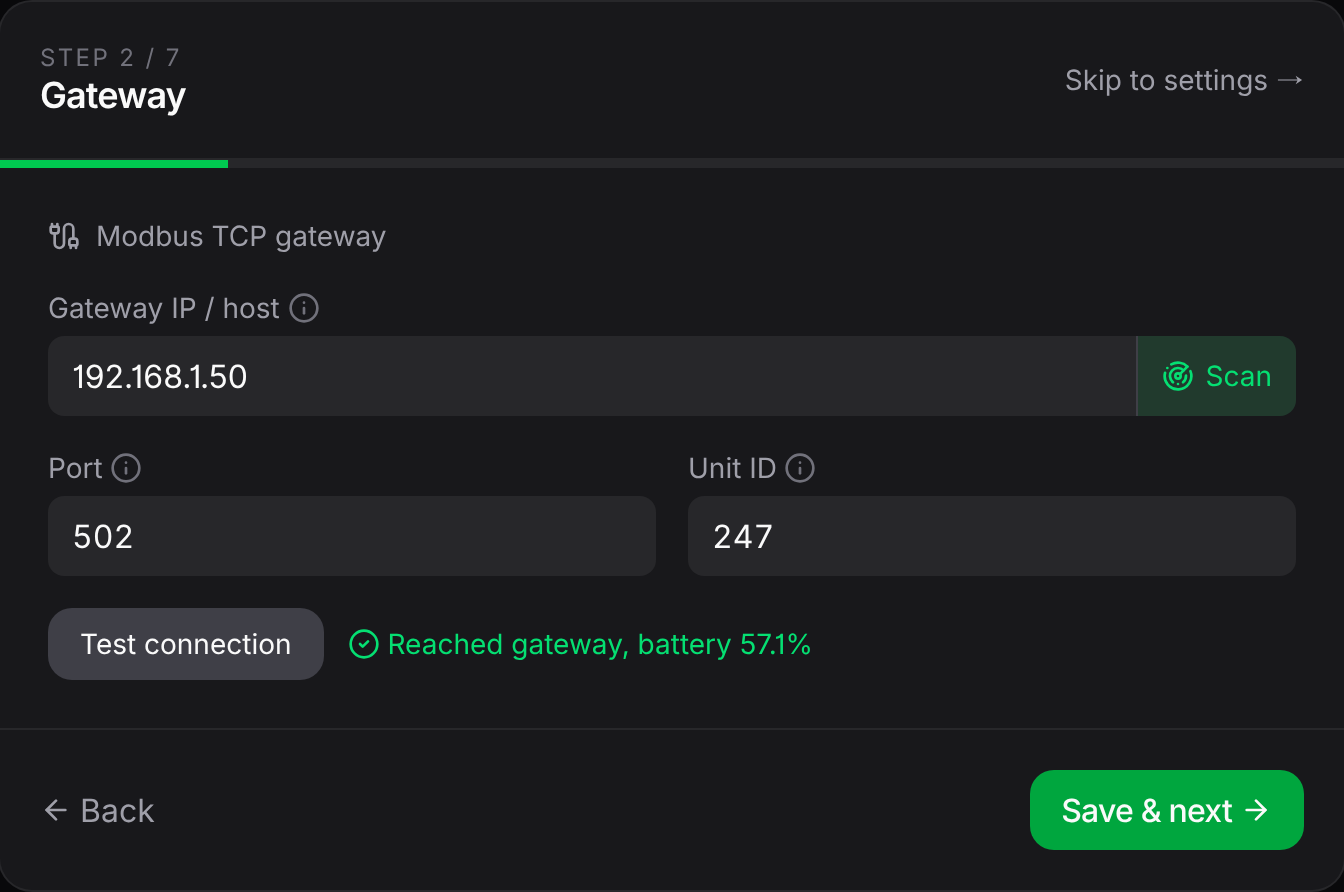
If Scan can't find it
Set the address yourself. Don't use the IP shown in the mySigen app; that's the gateway's own internal address and it's usually on a different network from your machines. Find the real one with a port scan (swap in your own network range):
nmap -Pn -p 502 192.168.1.0/24The host that shows 502/tcp open (not filtered) is your gateway. Enter that in the wizard. Then give the gateway a fixed address on your router so it never moves.
4. Pair Apple Home (optional)
The bridge prints a pairing QR code and PIN to its log when it starts:
docker logs sigen-home-bridgeTIP
The same QR and code also live in the dashboard under Settings → Apple Home, so you can pair without opening the logs.
In the Home app: Add Accessory, scan the QR (or More Options to type the PIN, default 516-35-163). The bridge isn't Apple-certified, so the Home app flags it as uncertified; tap Add Anyway. Pairing survives restarts and upgrades. Full walkthrough on the Apple Home page.
5. Save it as an app (optional)
The dashboard installs as a home-screen app on any phone or tablet. On iPhone or iPad, open it in Safari, then Share → Add to Home Screen. It gets its own icon and launches fullscreen with no address bar, which is also the easiest way to turn a spare phone or tablet into a permanent wall display. Android works the same way through Chrome's Add to Home screen.
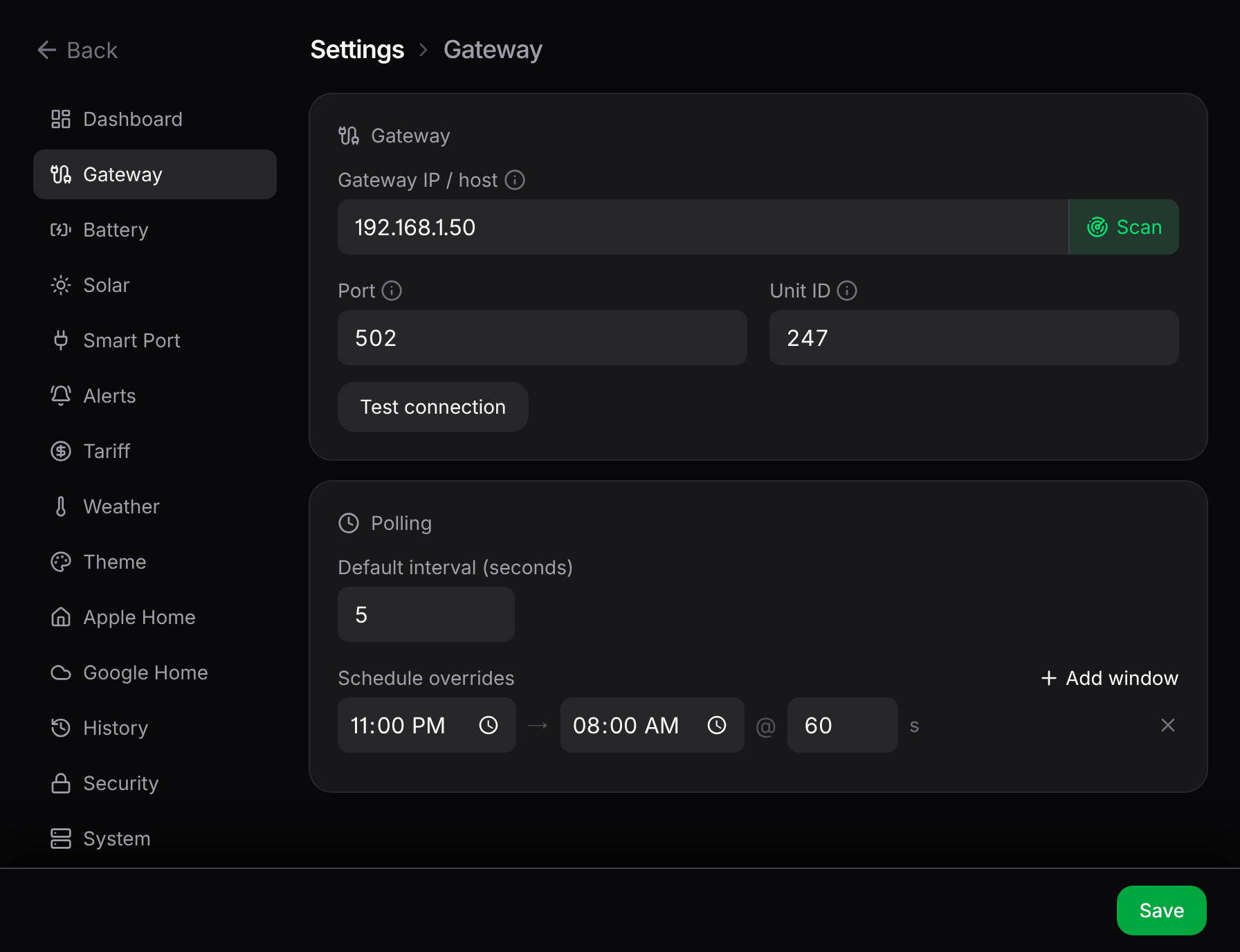
Everything is editable later from the gear icon: how often it checks, battery size, power units, alerts, tariffs, themes, weather, Apple Home, Google Home. No .env editing, and most changes apply without a restart.
Where next
- Learn the dashboard and its trends chart.
- Turn live grid flow into money with tariffs & cost.
- Get pinged when something needs attention with alerts.
- Reach the dashboard from outside the house, safely.