Live TV
A network tuner streams live channels to any device on your home network, and TVHeadend streams from any tuner it controls. None of it costs anything. Freetvarr has its own player for a quick look in a browser. The apps below suit an evening on the couch and need no Freetvarr at all.
To watch with the TV guide in Jellyfin or Kodi on your TV, copy the addresses from Freetvarr's SETTINGS → WATCH ON YOUR TV (TV apps has the steps).
The options
| App | Platforms | Points at | Note |
|---|---|---|---|
| Freetvarr | Any modern browser, phones included | TVHeadend | No install. Pause and rewind 30 minutes. Captions |
| The tuner's own app, e.g. HDHomeRun | Apple TV, iOS, Android, Fire TV, Windows | The tuner | No server in the path. Simplest thing that works |
| Plex live TV | Every Plex client | The tuner | Free. Plex Pass is only needed to record, which you already do in TVHeadend |
| Jellyfin live TV | Apple TV, iOS, Android, web | TVHeadend or the tuner | Free, and carries the TV guide. TV apps sets it up |
| Kodi + TVHeadend PVR add-on | Apple TV, Android, Shield | TVHeadend | Full guide, and it renders captions. TV apps sets it up |
In Freetvarr
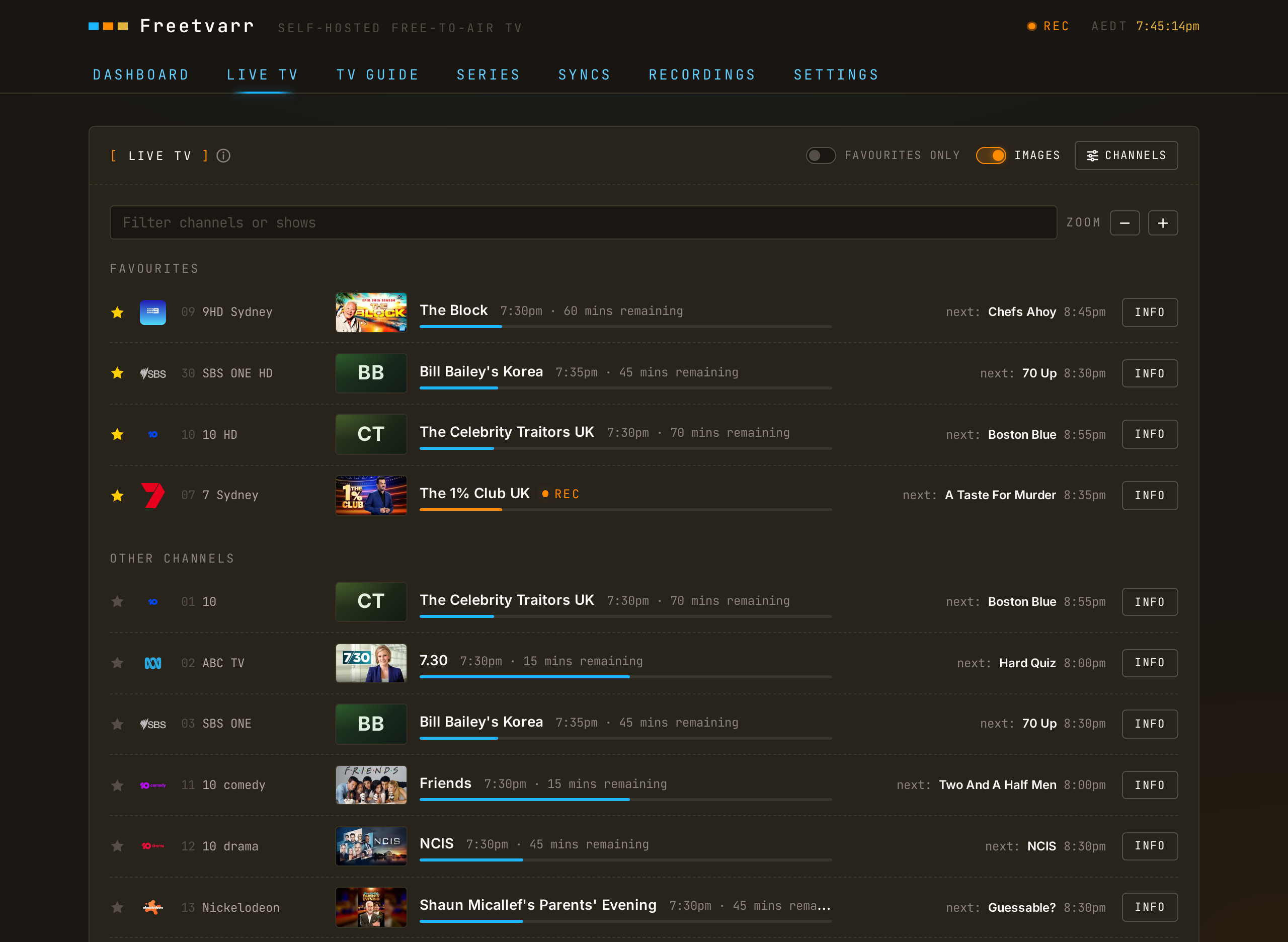
Tap a channel in the LIVE TV tab, or under LIVE NOW in the dashboard's WHAT'S ON panel, to watch it. A channel with no guide listing plays too. The INFO button at the end of each row opens the programme's details in the TV Guide; close them to return to the list. In the TV Guide, click a programme that is on air to open it, then press WATCH LIVE. The player keeps playing while you switch tabs. Close the player with the ✕ button to free the tuner.
A dimmed channel marked OFF AIR is not broadcasting right now, so a tap shows a message instead of starting a stream. The mark clears by itself once TVHeadend sees the channel again, after a channel scan.
The zoom buttons above the channel list change the row size. Zoom out for more channels on screen; zoom in for bigger pictures and text. Each browser remembers its zoom.
Programme info
Press the i button beside the status under the picture, or the i key on a computer, to show what is on. On a phone turned sideways, the button sits on the picture. The panel sits over the bottom of the picture and shows:
- The channel logo, number, and name.
- The title, the episode title, and the season and episode number.
- The start and end times, and how much of the programme has played.
- The genre, the classification, and the start of the description.
- The programme that is on next, and when it starts.
On a wide screen, the panel also shows the programme picture. While you watch from the rewind buffer, the panel describes what you are watching, not what is on air, and reads FROM BUFFER. The title at the top of the player changes when a new programme starts. If the guide has nothing for the channel, the panel says so.
Press the button again, press Esc, or click the picture above the panel to close it. That click closes the panel only: it does not pause or skip. The player's own controls come back when the panel closes. Press the full-screen button beside CC, double-click the middle of the picture, or press the f key to go full screen. In full screen, the info, CC, and exit full-screen buttons show at the top right of the picture. To stop watching, exit full screen first, then close the player.
Captions
Press the CC button beside the i button, or the c key on a computer, to turn captions on. Press it again to turn them off. Captions are off until you turn them on, and each browser remembers your choice for the next channel. While the programme info panel is open, captions hide and the CC button is dimmed. Closing the panel brings them back if they were on.
Captions come from the broadcast's Teletext subtitles. A channel shows the CC button only when it carries them, and some programmes on that channel have no captions at all. To watch captions in other apps, see Captions in other apps.
Record from the player
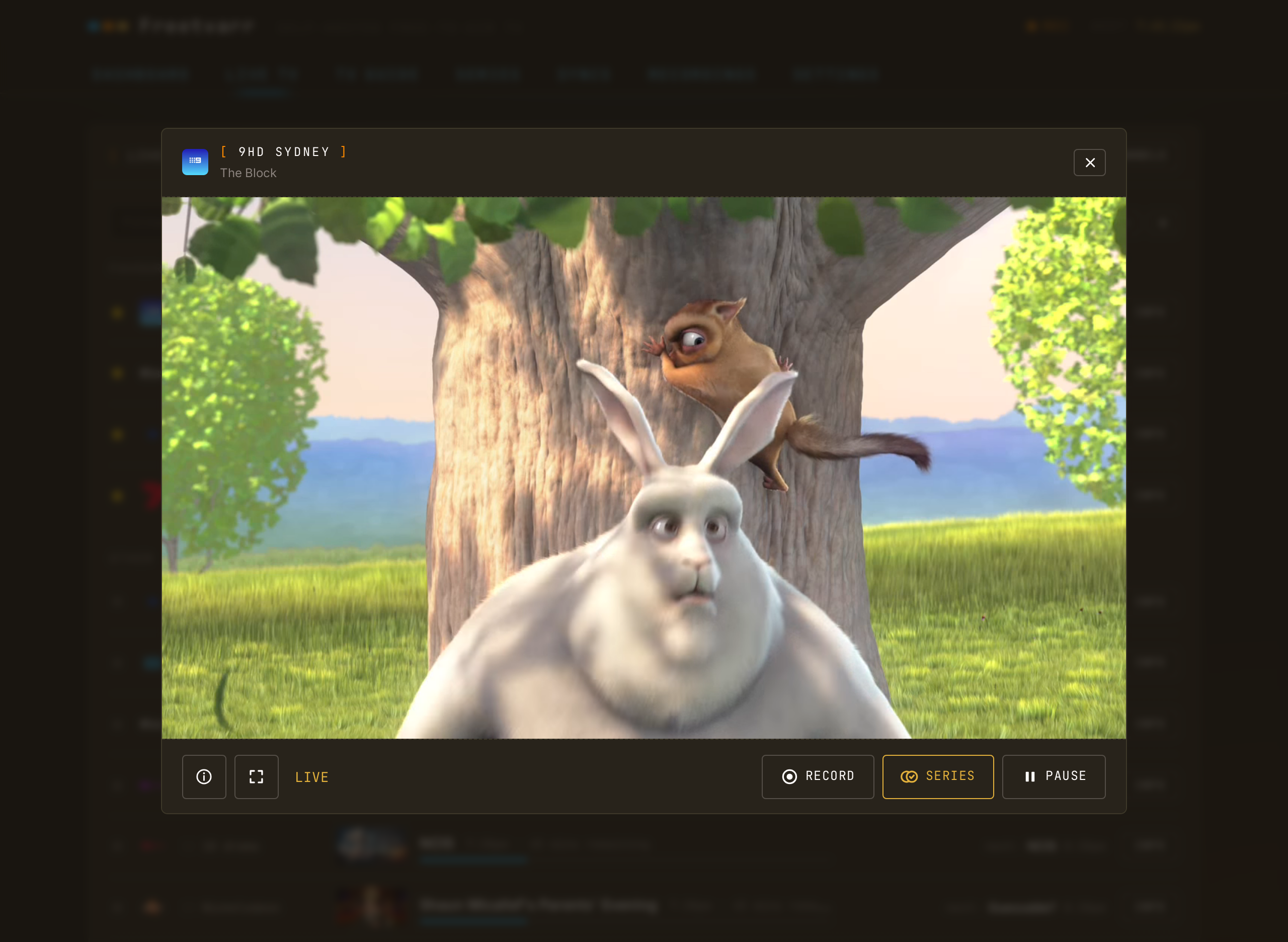
Press RECORD in the player to record the programme on now, or SERIES to record every episode. Both buttons open the same dialog as the TV Guide, with RECORD for this airing, SERIES where the programme belongs to a series, the folder it saves to, and the option to keep it out of your library. Under the status line, the dialog says what each button does. A recording starts from the moment you confirm, so the part that already aired is not included.
If the guide has no listing for what is on now, both buttons are dimmed. SERIES turns gold with a tick while a series recording records the programme; press it to change or cancel the series.
While the programme on now records, the record button reads STOP REC with a flashing orange dot (on a phone, the dot alone). Press it to open the dialog, then press STOP RECORDING. The dialog says what happens to the part already recorded:
- After
5minutes or more, the recording stops and the part recorded so far stays, and imports to your library like any finished recording. - Before
5minutes, the recording stops and Freetvarr deletes the part recorded so far.
Stopping an episode of a series recording stops that episode only. The series keeps recording future episodes, and it does not record the stopped episode again.
Pause and rewind
Press PAUSE under the picture, or the space bar or k key on a computer, to pause. The status reads PAUSED and the channel keeps recording into the buffer. Press PLAY to carry on from where you paused, or GO LIVE to jump to now. Pausing for longer than the buffer resumes from the oldest part the buffer still holds.
Pause the player, or drag back along its timeline, to rewind up to 30 minutes. While you are behind live, the player shows how far behind you are, and GO LIVE jumps back to now. Set LIVE_TV_BUFFER_MINUTES in the .env to keep more or fewer minutes, or 0 to turn it off.
To skip, double-tap (phone or tablet) or double-click (computer) the left third of the picture to go back 10 seconds, or the right third to go forward 10 seconds. Keep tapping to skip further. On a computer, the left and right arrow keys skip 10 seconds too. Skipping stops at the start of the buffer and at live. Safari on an iPhone shows no timeline for live TV, so double-tap is the way to rewind there.
If you lock the phone or switch to another app, Freetvarr keeps the channel and its buffer for as long as the buffer lasts (30 minutes by default), so you can come back to it. The tuner stays in use for that time (close the player with ✕ to free it at once).
The buffer starts when you open the channel, so you can rewind only as far back as that. A paused channel keeps its tuner. Changing channel or closing the player deletes the buffer.
Freetvarr keeps the buffer on disk, in the Freetvarr Docker container's temporary folder. At typical broadcast quality, 30 minutes takes about 1–2GB for each channel that is playing.
Stream handling
If a channel takes longer than about 15 seconds to start, the player says it is still waiting for a signal. If a stream stops, the player says why (for example, a recording took the tuner), and RETRY tunes the channel again.
Freetvarr gets the channel from TVHeadend and converts it with ffmpeg into a stream that any browser can play:
- H.264 video is deinterlaced and re-encoded to progressive H.264. See Video handling.
- MPEG-2 or HEVC video is re-encoded to H.264 in software, because browsers cannot play MPEG-2. Standard-definition channels stay at
576lines; HD channels in those formats drop to540lines to keep the CPU load down. - Audio becomes stereo, in TVHeadend's default language, without the audio-description track.
Each channel needs a tuner, unless a tuner already carries its multiplex, in which case the two share it. If every tuner is busy, the player says what is using each one. If a recording in the next hour needs the tuner, the player warns you. When the recording starts, the recording takes the tuner and the live stream stops.
Stream limits:
- Two channels at once by default. Set
LIVE_TV_MAX_SESSIONSin the.envto change it. Viewers of the same channel share one stream. - The stream stops 20 seconds after the last viewer closes the player or the tab. A locked phone or a hidden tab keeps it for the buffer length instead (Pause and rewind).
- CPU: a software re-encode costs far more CPU than a hardware one. See Video handling.
NOTE
The Freetvarr user in TVHeadend needs the streaming right, which the TVHeadend guide already grants. TVHeadend gives Freetvarr's stream a low priority (weight 50), so a recording always takes the tuner first.
Video handling
Many broadcasters send HD as interlaced H.264 (Australian 1080i, for example). Chrome cannot play interlaced H.264; Safari can. So Freetvarr deinterlaces H.264 and re-encodes it to progressive H.264.
At startup Freetvarr reads LIVE_TV_TRANSCODE and picks one method:
| Value | Behaviour |
|---|---|
auto (default) | Hardware if a test encode passes on the VAAPI device, software otherwise |
hardware | The same test and the same fallback as auto |
software | Always software: yadif and libx264, capped at 540 lines. Costs much more CPU |
copy | The old behaviour: H.264 passes through untouched. Safari plays it; Chrome cannot play interlaced channels |
Hardware means VAAPI on Intel Quick Sync or AMD, set up as in Hardware transcoding. The result is capped at 720 lines. The device defaults to /dev/dri/renderD128; set LIVE_TV_VAAPI_DEVICE in the .env to use another. NVIDIA (NVENC) is not supported, so an NVIDIA host uses software.
Freetvarr logs the choice and the reason on a line that starts with [live] video. To read it, run docker compose logs freetvarr | grep "\[live\] video" in a terminal in the freetvarr folder.
NOTE
The author's NAS (Synology DS220+, Intel Celeron J4025 with two cores) re-encodes 1080i to 720p in hardware at about 6.5x real time, using about 5% of one core. Software at 720p ran at only 1.36x real time on both cores, which is why the software path caps at 540 lines.
Browser notes
If an HD channel fails in Chrome, see Playback failed on HD channels.
The tuner's own app
The author uses the HDHomeRun app, which finds the tuner by itself. The app talks to the tuner directly and skips TVHeadend, so it competes with recordings for tuners. A USB or PCIe tuner has no app of its own, so watch it through TVHeadend with Jellyfin or Kodi instead (TV apps).
Plex
Plex discovers an HDHomeRun the same way its own DVR feature does, and plays live channels on any client without a Plex Pass (Plex: Live TV & DVR). You need a Plex Pass only to record through Plex, and TVHeadend and Freetvarr already do that for free. With a USB or PCIe tuner, watch through Jellyfin or Kodi connected to TVHeadend instead.
Captions in other apps
Captions arrive either as Teletext or as DVB subtitles, and your broadcaster decides which. Australian broadcasters send Teletext, and not every app shows it:
- The native HDHomeRun app is unproven. SiliconDust documents DVB subtitle support but says nothing about Teletext, and the author has not tested it on an Australian channel.
- Kodi, VLC, and Channels do render them. If captions are a requirement, watch through one of those.
NOTE
The same applies to recordings. A .ts from TVHeadend carries the Teletext stream, so a player that decodes Teletext shows captions and one that doesn't shows nothing.
Tuner budget
Recording and watching share your tuners. The author's Flex Quatro has four tuners, so recording three overlapping programmes leaves one tuner for live TV. In TVHeadend's web interface, Status → Stream shows what is using each tuner.