Series
A series has two parts: a series recording in TVHeadend and a folder in your TV library. TVHeadend records each episode. Freetvarr imports every recording TVHeadend finishes, and files the episodes of a series into its own folder at the next sync. The SERIES tab lists both parts together.
Add a series
- In Freetvarr, open the TV Guide.
- Click a programme of the series.
- Press SERIES.
Freetvarr creates the library folder at the same time, unless you turn ADD TO LIBRARY off first. Freetvarr uses an existing folder with the same name under your media root, or creates a new folder named after the series.
Matching is by title: a recording goes to the folder whose title appears in the recording's title. When more than one folder matches, the longest title wins, so NRL Grand Final beats NRL.
Record on any channel
Turn on RECORD ON ANY CHANNEL in the programme window before you press SERIES. The series recording then matches on title alone, and records the show on whichever channel airs it, for example when it moves from 7 to 7mate. Episodes it already has are not recorded again. It is off by default.
Use it for a show that moves between channels, such as a series that airs on 7 one season and on 7mate the next. The SERIES tab shows Any channel where it normally shows the channel names.
An episode that airs on two channels records once. The series recording skips an episode whose episode number it has already recorded, on any channel. This needs episode numbers in your TV guide, as in How a series recording works. Where they are missing, TVHeadend records every airing, so the same episode can record twice.
To change the setting on an existing series, stop the series recording and record the series again.
How a series recording works
A series recording is one TVHeadend autorec entry. It matches on title plus channel (or on title alone, with any channel), across all days and all start times. It skips an episode whose episode number it has already recorded. The episodes to keep option maps to the maximum-count field of TVHeadend, so TVHeadend removes the oldest episodes itself.
- One channel: an SD channel and its HD simulcast are separate channels, so a series recording on the HD channel does not cover SD airings. The SERIES tab shows both as one series.
- Episode numbers: duplicate detection needs them. XMLTV feeds carry them inconsistently, so your TV guide source decides what you get. Where they are missing, TVHeadend records every airing.
Series rows
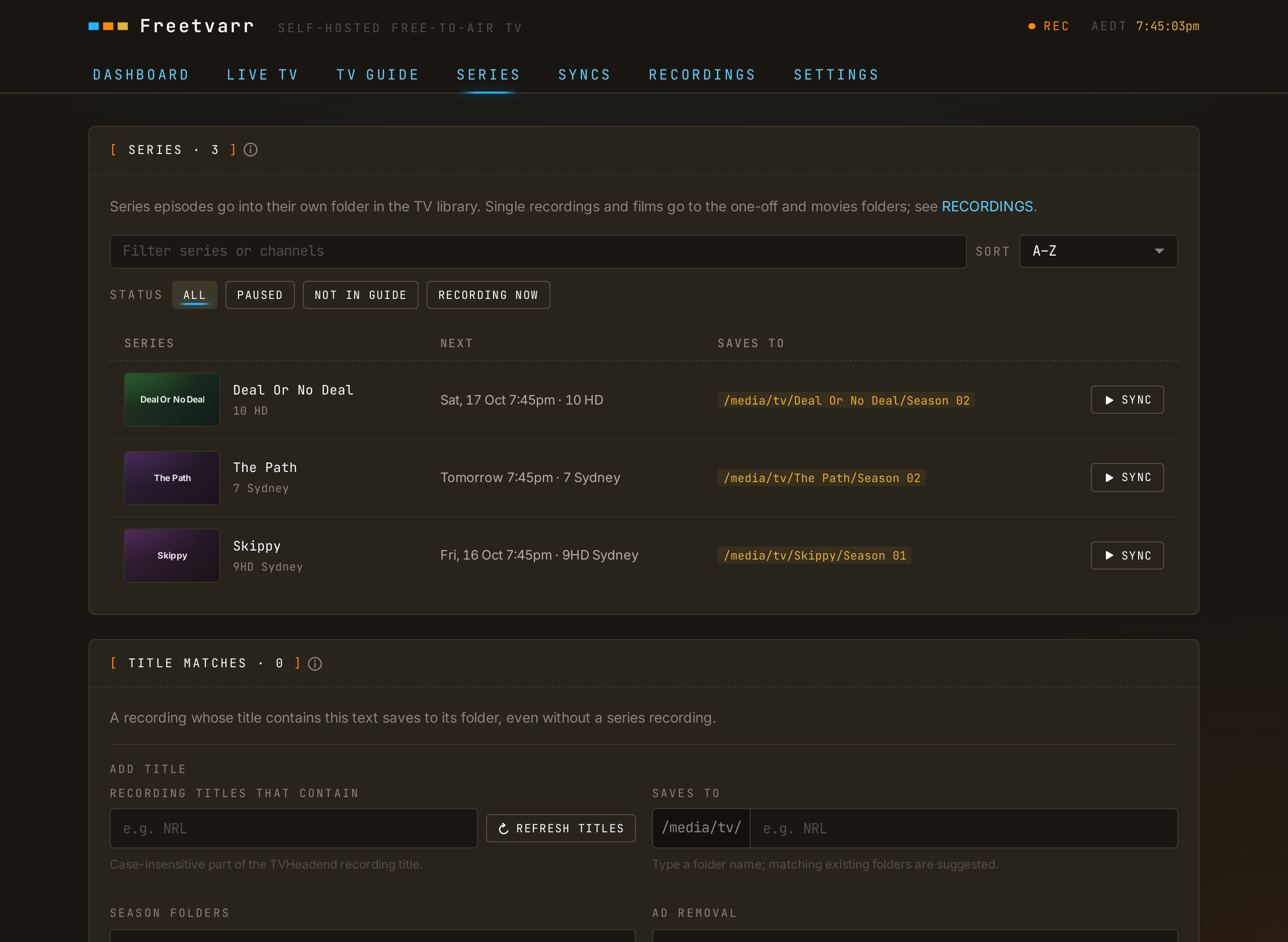
Each row shows one series:
- The title, with the channels and the number of episodes to keep.
- NEXT: the next airing, or the next expected airing, with its channel.
- SAVES TO: the full path where the next sync saves new episodes, such as
/media/tv/Bluey (2018)/Season 01. The season comes from the next airing; when the TV guide has no season number, the path showsSeason …. A series with no library folder shows its folder in the one-off folder, such as/media/one-offs/Bluey. When IMPORT EVERY RECORDING is off in SETTINGS, such a series shows that its episodes wait in Recordings.
A row shows a PAUSED badge when the series recording in TVHeadend is paused. A row with no badge records new episodes as normal.
SYNC (on a row with a library folder) imports the new episodes of this series now.
Press a row to open the series under it. Press the row again, or press Esc, to close it. The open series shows:
- SERIES RECORDING: whether TVHeadend records new episodes, with PAUSE and CANCEL SERIES.
- A series with a library folder shows the edit form.
- A series that saves to the one-off folder shows that path and ASSIGN FOLDER, which gives the series a folder in your TV library. See Assign a folder.
- PAUSE stops TVHeadend recording new episodes of this series. Episodes already recorded still import. RESUME starts it again. On an SD and HD pair, both series recordings pause and resume together.
- CANCEL SERIES removes the series recording from TVHeadend. See Cancel a series recording.
Sort and filter
The controls above the series rows narrow and order the list:
- Filter series or channels: type part of a title, a channel name,
any channel, or part of a SAVES TO path. The filter also applies to the TITLE MATCHES panel. - SORT: A–Z (the default), NEXT AIRING, or RECENTLY ADDED. A–Z ignores a leading "The", so
The Blocksorts under B. NEXT AIRING puts series with nothing in the TV guide last. RECENTLY ADDED uses the date the series got its library folder, so a series that saves to the one-off folder sorts last. - STATUS: ALL, PAUSED, NOT IN GUIDE (nothing in the TV guide for the next
7days), or RECORDING NOW. On a phone, press FILTERS to pick a status.
The panel title shows how many series match, such as SERIES · 2 OF 9. CLEAR FILTERS shows all series again. The browser remembers the sort order; the filter and status reset when you leave the tab.
Cancel a series recording
On the SERIES tab, press a row, then CANCEL SERIES. The programme dialog of the TV Guide and the live player also has CANCEL SERIES. TVHeadend stops recording new episodes and removes the upcoming ones. Episodes already recorded stay, and so do their files. Before it cancels, Freetvarr asks:
- STOP THE EPISODE ON NOW (shown while an episode records): on by default. After
5minutes or more of recording, the episode stops and the part recorded so far stays. Before5minutes, Freetvarr deletes it. Turn the switch off to let the episode record to the end. - KEEP TITLE MATCH (shown when a title match saves this series): off by default when SERIES made the title match, so cancelling removes it. A title match records nothing by itself; it only decides the folder for recordings with that text in the title. Turn the switch on to keep saving them to the same folder.
To change nothing, close the question. In the programme dialog, KEEP SERIES goes back to the programme.
Assign a folder
Press a series that saves to the one-off folder, then ASSIGN FOLDER. A dialog opens before anything changes:
- Check the folder name. Freetvarr fills in an existing folder with the same name under your media root, or a new folder named after the series.
- To use another folder, type its name, or choose it under OR PICK AN EXISTING FOLDER.
- Press ASSIGN to save the folder for the series.
The dialog shows the full path for future episodes. Episodes already imported stay where they are; Freetvarr does not move them. After ASSIGN, the edit form opens under the row.
Edit a series folder
Press a series with a library folder to open these fields under the row:
- SAVES TO: the folder under your media root (shown before the field) where the series goes. As you type, Freetvarr suggests matching folders that are already there.
- SEASON FOLDERS: the season template.
- RECORDING TITLES THAT CONTAIN: the title that Freetvarr matches. It ignores case.
- AD REMOVAL: OFF, DETECT, or CUT. See Ad removal. The field is off until you turn on ad removal in SETTINGS.
- REMOVE FROM TVHEADEND AFTER IMPORT: remove the TVHeadend copy once Plex confirms the file. See Remove from TVHeadend.
Press SAVE to keep the changes. To close the form without saving, press the row again, or press Esc. A change to SAVES TO applies to future episodes only (episodes already imported stay where they are).
UNASSIGN FOLDER removes the folder from the series, after you confirm. Future episodes then save to the one-off folder again. When IMPORT EVERY RECORDING is off in SETTINGS, they wait in Recordings instead. Episodes already imported stay where they are.
Season template
Each folder has a season template that decides where episodes are saved: {season}, {season_padded} (zero-padded, 01), or {season_unpadded} (1). Freetvarr writes to <media_root>/<dest_folder>/<season>/…, and it rejects any template that would point outside your media root.
Filenames
Freetvarr renames every file as it imports it, into the shape your library reads:
Show Name - S01E02 - Episode Title.tsWhen the TV guide gave no episode number, the air date stands in:
Show Name - 2026-09-21 - Episode Title.tsThe episode title is dropped when the TV guide did not supply one. TVHeadend's own naming is left alone, because nothing downstream reads it.
Title matches
A recording whose title contains this text saves to its folder, even without a series recording. The TITLE MATCHES panel lists each title with no series recording: a title you added by hand, such as NRL, or a series you cancelled with KEEP TITLE MATCH on. Each title has a SAVES TO path and SYNC, like a series row. Press the row to open the edit form under it. In the edit form, REMOVE TITLE MATCH removes the title after you confirm (recordings already imported stay where they are).
To add a title:
- Under ADD TITLE, enter the RECORDING TITLES THAT CONTAIN text. Press REFRESH TITLES to list the titles TVHeadend has recorded.
- Under SAVES TO, enter the folder under your media root. Freetvarr suggests an existing folder, or a new folder named after the title.
- Set the season folders, ad removal, and REMOVE FROM TVHEADEND AFTER IMPORT.
- Press ADD TITLE.
Recordings with no series
A recording that matches no series folder, such as a sports final or a special, goes to the one-off folder (/data/media/one-offs in the example Docker compose file). Each title gets its own folder, and the file name carries the air date and start time:
NRL Grand Final/NRL Grand Final - 2026-10-04 1930.tsThe one-off folder stays out of the TV library on purpose. Plex, Jellyfin, and Infuse match a TV library against online listings, and a one-off title rarely matches. In your media server, point a separate library at the folder instead (in Plex, use the Other Videos library type). See Configuration for the mount and the SETTINGS switch that turns this off.
Films
Set a movies folder in SETTINGS, and a film with no series folder goes there instead, named the way movie libraries expect:
Isle Of Dogs (2018)/Isle Of Dogs (2018).tsFreetvarr treats a recording as a film when the TV guide gives it a film or drama genre, no season or episode number, and a length of at least 75 minutes. The year appears only when the TV guide supplies one. Without a movies folder, films go to the one-off folder.
Import, not download
TVHeadend already wrote the file to a folder Freetvarr can see, so there is nothing to download. The import is a hardlink when Freetvarr sees both folders through one mount, and a copy when it does not (One shared mount). A hardlink is instant and uses no extra disk space. A copy shows its progress in Recordings.
Per-series switches
These options are set per series folder in the edit form:
- Remove after import: remove the TVHeadend copy once Plex confirms the file. See Remove from TVHeadend.
- Ad removal mode:
off,DETECT, orCUT. See Ad removal.