TV Guide
The TV GUIDE tab is a 7-day programme guide. Click a programme to record it, cancel it, or record a whole series in TVHeadend. Freetvarr imports each recording into your library after TVHeadend records it.
The TV Guide shows only the listings you loaded into TVHeadend. With the XMLTV guide feed set up (step 6) you get seven days with episode numbers. Without it you get what the broadcast carries: about a day, with little detail.
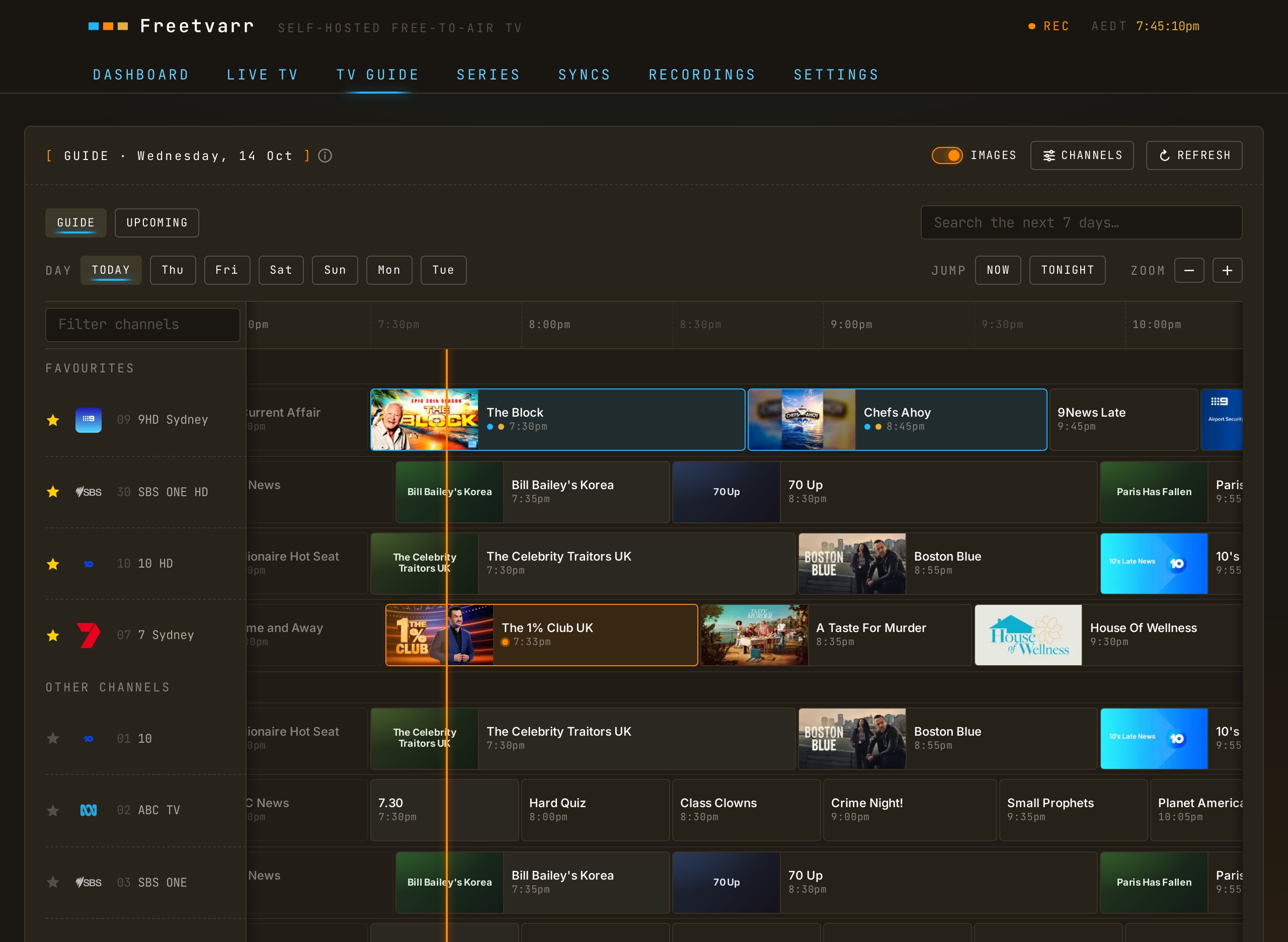
The grid
Channels run down the page and time runs across. The TV Guide opens at the current half hour.
- The day chips switch between today and the next six days;
NOWandTONIGHTjump within the day. - The zoom buttons change the time scale. Each browser remembers its zoom.
- Search covers all 7 days on the grid, and filters the list on
UPCOMING. - The filter box above the channels narrows them by name or number.
- Cell borders show recording state: blue for scheduled, gold for a series recording, orange for recording now.
- Programmes that ended earlier today stay in the grid. TVHeadend drops a programme once it ends, but Freetvarr keeps its own copy.
- Hover over a programme, or tab to it, to see its full title, times, and synopsis.
- Drag the right edge of the channel list to make it wider or narrower.
- A dimmed channel with OFF AIR beside its name is not broadcasting right now: TVHeadend has switched off every service for it. The note clears by itself once TVHeadend sees the channel again, after a channel scan.
- Each channel in the CHANNELS dialog shows
HDorSDbefore its name, read from the TV service type that TVHeadend reports. HIDE SD SIMULCASTS uses it to pair an SD channel with its HD twin, even when both have the same name.
After midnight
Each day's grid runs to 3am the next morning, so a late film stays on the same page. Programmes after midnight are dimmed, but they work like any other. While midnight is in view, a button with the next day's date opens that day at the same time of night.
Recording a programme
Click a programme's cell to open its detail: the programme image, synopsis, rating, season and episode. The image comes from the XMLTV guide feed (a TV guide fed only by the broadcast has none); see Missing pictures for what Freetvarr shows when the feed has no image.

From there:
- RECORD schedules the single airing.
START EARLYandRUN LATEpad the recording, 2 minutes before and 10 minutes after by default, because free-to-air broadcasts often run late. - SERIES creates a series recording in TVHeadend, with an episodes-to-keep option. See How a series recording works.
- ADD TO LIBRARY decides what Freetvarr does with the recording. Under the switch, the dialog says where the file will go: the series folder when one matches, the movies folder for a film, or the one-off folder when neither does. With the switch off, the recording stays in TVHeadend only. With it on, SERIES also creates the series folder, so the episodes go to the TV library. To change a folder later, open SERIES.
- Above the settings, the dialog says what each button does.
- A scheduled programme shows CANCEL RECORDING instead. For an episode of a series recording, CANCEL RECORDING skips that episode only: TVHeadend keeps it disabled, so the series recording does not schedule it again. To turn it back on, open the episode later and press RECORD.
- A programme that is recording now shows STOP RECORDING. After
5minutes or more, the part recorded so far stays and imports to your library; before5minutes, Freetvarr deletes it. The dialog says which applies. - A programme with a series recording also shows CANCEL SERIES. See Cancel a series recording.
Many networks show the same programme on an SD channel and an HD channel, such as 7 Sydney and 7HD Sydney. If you press RECORD or SERIES on the SD channel and the TV guide has the same programme at the same time on an HD channel, Freetvarr asks whether to record the HD channel instead. Your padding, episodes-to-keep, and ADD TO LIBRARY choices carry over.
The UPCOMING view lists what will record: the recordings TVHeadend has scheduled, plus the episodes your series recordings will catch over the next 7 days. Click a card to open the programme, then record it or cancel its recording. The SERIES tab lists the series recordings themselves.
Favourites
Press the star next to a channel to make it a favourite. Favourites sit at the top of the grid. To reorder them, hold a favourite until it lifts, then drag it. Reordering also works on the Live TV page.
In Australia, the wizard's channel scan starts you with five favourites: the HD channels of ABC, Seven, Nine, 10, and SBS, or the SD channel where a network has no HD channel. The wizard does this only when you have no favourites, and only once. Remove or reorder them like any other favourite.
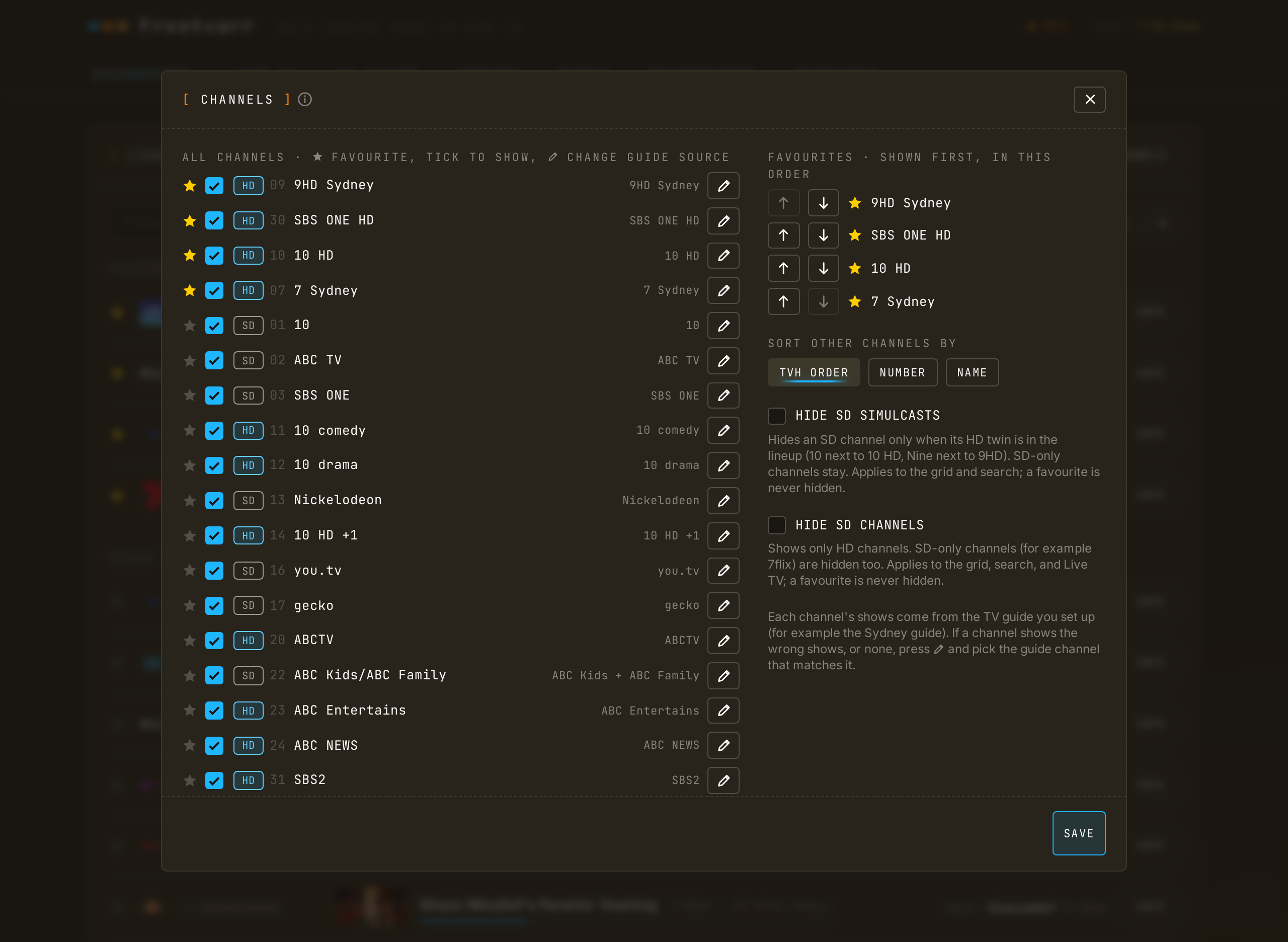
The CHANNELS button above the grid opens a wide dialog on a computer. The channel list is on the left and the settings are on the right. On a phone, the settings come first and the list follows. The settings are:
- FAVOURITES: reorder or remove them.
- SORT OTHER CHANNELS BY: TVHeadend order, channel number, or name.
- HIDE SD SIMULCASTS: hides an SD channel when its HD twin is in the lineup. SD-only channels stay.
- HIDE SD CHANNELS: shows only HD channels. SD-only channels (for example 7flix) are hidden too. It applies to the grid, search, Live TV, and the channel list in this dialog. Favourites are never hidden. While it is on, HIDE SD SIMULCASTS is ticked and locked, because it hides the same channels.
- All channels: untick a channel to hide it. Favourites are always shown.
- Listings: fix the shows of a channel that has the wrong ones, or none. See Channel listings.
Press SAVE to apply the changes. To close the dialog without saving, press × in its title bar.
Channel listings
Each channel's shows come from one channel in the TV guide you set up, such as the Sydney guide chosen in the GUIDE step of the setup wizard. The setup wizard links each channel to a guide channel for you. If a channel shows the wrong shows, or none, pick a different guide channel for it:
- In the TV Guide, press
CHANNELSabove the grid. - Press the pencil next to the channel (Change guide source). The row shows the current guide channel in a box you can type in.
- Type part of the guide channel's name to find it (
7finds Seven and 7two), then pick the one that matches. Guide channels with no shows in the guide are at the end of the list, marked(no shows in this guide), and you cannot pick them. The arrow keys andEnteralso work, andEsccloses the list. Press the tick (Use this guide source, orEnterwith the list closed). Press the cross (Keep the current guide source, orEsc) to keep the current pick. - Press
SAVEto save the new listings.
Each row shows the name of its guide channel, or No listings. A row you changed is marked until you press SAVE. Opening another channel's pencil drops an unconfirmed pick.
Pick No listings to remove a channel's shows. The channel's shows go at once. Two channels can use the same guide channel, such as SBS ONE and SBS ONE HD.
Freetvarr saves the pick in TVHeadend, removes the channel's old shows, and asks TVHeadend to load the TV guide again. The channel stays empty while TVHeadend downloads the guide. In the channel's row, to the right of the orange now line, the TV Guide shows Loading the new listings. This can take a couple of minutes. When the new shows are in TVHeadend, the TV Guide shows them and the note goes.
Freetvarr also turns off TVHeadend's Auto EPG channel setting for a channel you change. TVHeadend then does not add a guide channel to it again by name or number.
Shows that already ended stay in the TV Guide under their old listings. A scheduled recording on the channel stays at its time, but no longer follows a guide programme.
If the pencils are missing, the TV guide is not set up yet. Open the setup wizard and proceed to its GUIDE step.
A series recording matches on title and channel. When you fix a channel's listings, that channel gets different programmes, so its series recordings can catch different episodes. Check the UPCOMING view after the change.
If saving the listings fails, the dialog says so on its own line. Your favourites and hidden channels are still saved.
On a phone
The TV Guide works in a phone browser, and you can reorder favourites by touch. To run it full-screen, add Freetvarr to your Home Screen. In that Home Screen app, pull down from the top of a page to refresh it (see Pull to refresh).
Live TV page
The LIVE TV tab lists every channel with what's on now and next, favourites first. Filter by channel or show, or show favourites only.
On the dashboard
The dashboard's WHAT'S ON panel shows what's on now and next on your favourite channels, and the next few scheduled recordings. Tap a channel to watch it live. Tap INFO at the end of its row, the next programme, or a recording to open it in the TV Guide. To fill the panel, press the star next to some channels in the TV Guide.
While TVHeadend records, a RECORDING NOW panel at the top of the dashboard shows each recording's progress, file size, and tuner signal. If TVHeadend reports a recording as failed, the card turns red and shows TVHeadend's reason. After a recording stops, its card shows it through import, ad removal (if on), and into your library. While anything records, the browser tab title starts with ● REC.
Missing pictures
Some programmes in a guide feed have no image, or an image link that no longer works. Freetvarr then looks for a picture in this order:
- Another airing of the same programme in the guide.
- The show's background or poster in your Plex TV or movies library, matched by title.
- The show's picture on TVmaze, a free online TV database, matched by exact title.
If none of these has a picture, Freetvarr shows a title card: the programme's name on a coloured background.
A TVmaze lookup sends the programme title to TVmaze. Freetvarr keeps each answer for 30 days, or 7 days when TVmaze has no match. To turn the lookups off, go to SETTINGS → PICTURES and turn off LOOK UP MISSING PICTURES ON TVMAZE.
Caching
Freetvarr keeps a copy of the TV guide for an hour and the recording state for 45 seconds, to limit the requests to TVHeadend. Press REFRESH to fetch them again. If TVHeadend stops answering, the TV Guide shows its cached copy with a note, and updates when TVHeadend is back.