TVHeadend
TVHeadend is the recorder. It drives the tuner, holds the channel list and the TV guide, runs the timers, and writes the files. Freetvarr reads all of that over TVHeadend's HTTP API, so TVHeadend has to work on its own before Freetvarr is any use.
Set it up in this order. Each step depends on the one before it. Any TVHeadend-compatible tuner works here. The steps change only where they name a device or a country.
TIP
Most of this page is manual setup, and you can skip most of it. The install script does step 1. Freetvarr's setup wizard does steps 2 to 6 and step 8 for an aerial or cable tuner, and checks step 7. Read on to set up TVHeadend by hand, to use a satellite tuner, or to see what the wizard changed.
NOTE
The HDHomeRun tuner, the au-Sydney mux list, and the Sydney XMLTV feed on this page are the author's own setup in Australia. They are the worked example, not a requirement. Substitute your own tuner, transmitter, and TV guide source. Outside Australia lists the guide sources and mux lists for other countries.
1. Run the container
The example Docker compose file already defines TVHeadend next to Freetvarr. Do step 1 of Getting started first (download the Docker compose file, or run the install script), then come back here. The TVHeadend service in that file looks like this:
services:
  tvheadend:
    image: lscr.io/linuxserver/tvheadend:latest
    container_name: tvheadend
    restart: unless-stopped
    network_mode: host
    environment:
      - PUID=${PUID:-1000}
      - PGID=${PGID:-1000}
      - TZ
    volumes:
      - ${CONFIG_PATH}/tvheadend:/config
      - ${DATA_PATH}/recordings:/recordings
      - /etc/localtime:/etc/localtime:ro
The image documents four environment variables: PUID, PGID, TZ, and an optional RUN_OPTS for extra launch arguments. The read-only /etc/localtime mount gives the TVHeadend Docker container the host's time zone, so TVHeadend needs no TZ. The bare TZ line passes TZ through only when your .env sets it, to override the host zone. Freetvarr does not use this mount. Freetvarr asks for its time zone in its setup wizard instead. /config holds TVHeadend's own configuration. /recordings is where TVHeadend writes its recordings. Remember that path: step 7 sets it as TVHeadend's recording path. Freetvarr mounts the same host folder through ${DATA_PATH}, at /data/recordings.
IMPORTANT
Use network_mode: host for a tuner TVHeadend finds by network broadcast, such as an HDHomeRun or a SAT>IP server (those broadcasts don't cross Docker's private bridge network). A USB stick or a PCIe card needs no discovery, so you can drop host networking, map 9981 and 9982 as ports, and pass the /dev/dvb devices in instead. Under host networking there is no ports: mapping. TVHeadend binds 9981 (web interface and API) and 9982 (its own streaming protocol) straight onto the host.
In a terminal in the freetvarr folder, run docker compose up -d tvheadend to start the TVHeadend Docker container. Then open http://<host-ip>:9981 in a browser to reach TVHeadend's web interface.
NOTE
Give TVHeadend and Freetvarr the same PUID/PGID. Freetvarr imports by hardlink where it can, and it deletes the TVHeadend copy afterwards. Both need the same owner on the recordings folder.
2. Secure TVHeadend
A fresh linuxserver TVHeadend has no logins. It starts with a default access entry, username *, that gives anyone on any network full admin rights. Freetvarr's setup wizard replaces that entry with real logins, so run it now: install Freetvarr (Getting started) and open its wizard (step 2).
When the wizard finds a TVHeadend with only the default entry, it asks for three things:
- An admin username and password. You sign in to TVHeadend's web interface with these. Freetvarr sends them to TVHeadend once and does not store them. The password has one field with a show and hide button, so check it for typos before you continue.
- The allowed networks. Both logins work only from these address ranges. The wizard fills in one
/24range for each address of the Freetvarr host and for the network of your browser, plus127.0.0.0/8(a host at192.168.86.254gives192.168.86.0/24). Add any other network you sign in from. - Confirmation. Press
SECURE TVHEADEND AND CONNECT FREETVARRto create the admin login and afreetvarrlogin with a random password, which Freetvarr keeps.
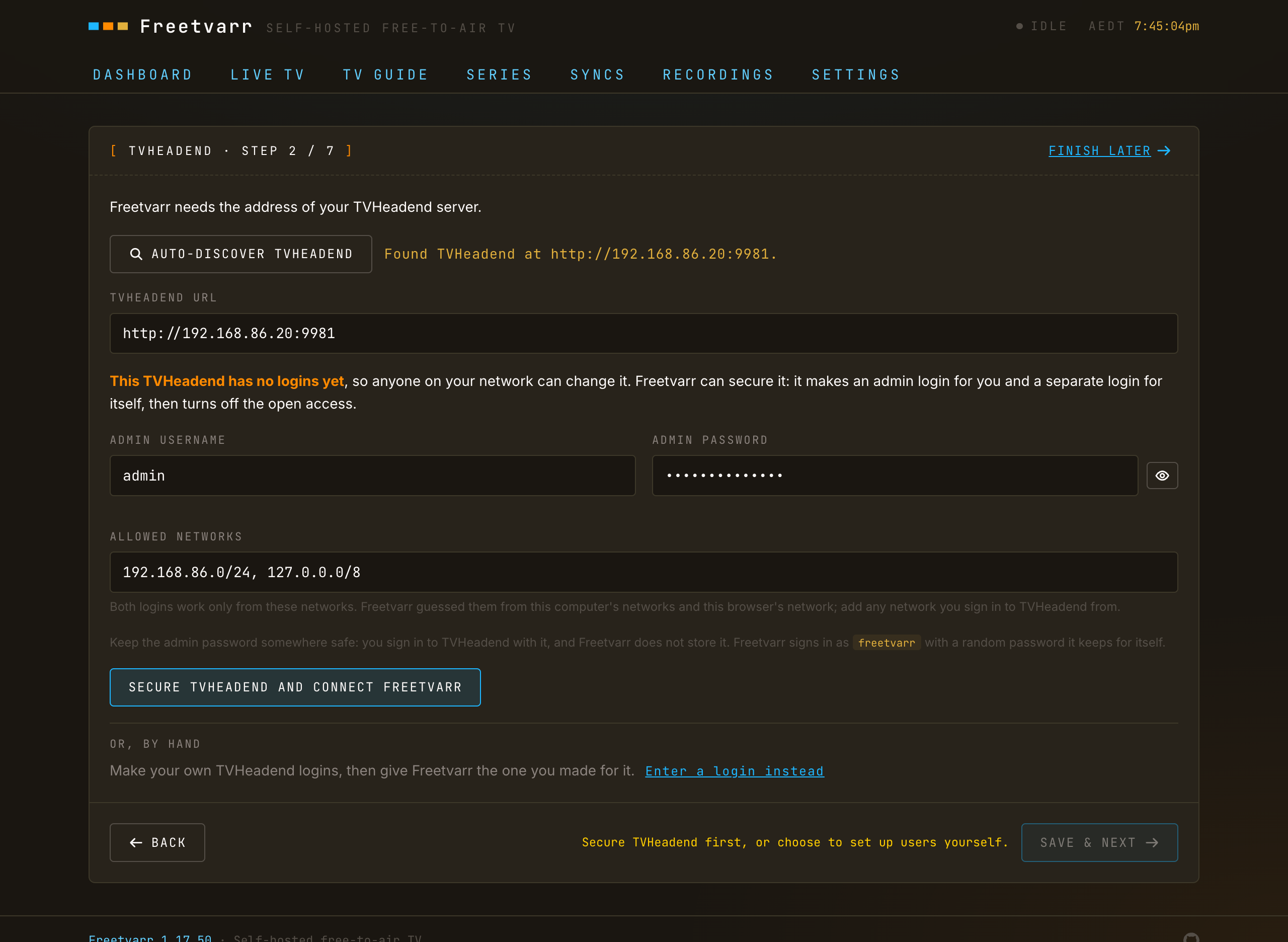
Freetvarr signs in with both new logins before it removes the default entry. If either login fails, Freetvarr deletes the logins it created and keeps the open access, so a typo cannot lock you out. It then checks that TVHeadend asks for a login. To put the default entry back, press SETTINGS → TVHEADEND → RESTORE OPEN ACCESS in Freetvarr.
If you installed TVHeadend yourself, the wizard asks for the TVHeadend username and password you created for Freetvarr instead (step 8) and uses that. The Doctor warns while the default entry is still there.
In TVHeadend's web interface, set the interface and TV guide (EPG) languages under Configuration → General → Base.
Securing by hand
Use TVHeadend's own wizard instead if you already set up TVHeadend users, or you do not use Freetvarr's wizard. Recent linuxserver builds do not open it on the first visit. Start it yourself in TVHeadend's web interface: Configuration → General → Base → Start wizard. What matters:
- Language. Set the interface and EPG languages you want.
- Access control. Set the allowed network prefix to your own home network (LAN), as above. Then set an admin username and password. Leave the user login empty. Step 8 creates the user Freetvarr needs.
- Tuner and network. The wizard offers to assign a network to each tuner it found. You can skip that here and do it deliberately in step 3.
- Mux scan and service mapping. Skip both. Steps 4 and 5 cover them.
Finish removes the default open entry. From then on, TVHeadend's web interface asks for the admin login.
Finish or cancel the wizard, even if you configured TVHeadend by hand. An unfinished wizard leaves the wizard value set in Configuration → General → Base, and the wizard opens again on every page load. Finishing or cancelling it clears the value.
WARNING
TVHeadend's password field has no confirm box, and a typo or a password manager's autofill leaves you locked out with 403 Forbidden. To get back in, add RUN_OPTS=--noacl to the environment: of the tvheadend service in docker-compose.yml, then run docker compose up -d tvheadend to restart TVHeadend. That option switches off all access checks. Set a new password in Configuration → Users → Passwords, then remove --noacl and run docker compose up -d tvheadend again.
3. Add the tuner
The CHANNELS step of the Freetvarr wizard does steps 3 to 5 for an antenna or cable tuner, and sets Re-record if errors from step 7. Follow steps 3 to 5 by hand for a satellite tuner, or to choose each setting yourself.
The linuxserver image is built with --enable-hdhomerun_client, so TVHeadend discovers HDHomeRun tuners on your home network by itself. The author's tuner is an HDHomeRun Flex Quatro, and the screens below follow it.
In TVHeadend's web interface, go to Configuration → DVB Inputs → TV adapters. The four tuners of a Flex Quatro appear as separate entries, each naming the device ID. If nothing appears, TVHeadend is not on the host network. Go back to step 1.
A USB stick or a PCIe card appears on the same TV adapters screen, once you pass its /dev/dvb devices into the TVHeadend Docker container. The rest of this step is the same for either.
Now create the network the tuners will use:
- Configuration → DVB Inputs → Networks → Add.
- Network type: pick what your country broadcasts. DVB-T Network in Australia, New Zealand, the UK, and Europe; ATSC-T Network in North America; DVB-C Network on cable.
- Give it a name (for example,
Free-to-air). - Pre-defined muxes: pick the entry for your transmitter (details in step 4).
- Press Save. Then go back to TV adapters, select each tuner, tick Enabled, set its Networks field to the network you just created, and press Save.
4. Scan the muxes
TVHeadend ships the community dtv-scan-tables, so you don't have to enter frequencies. The list covers every country, and each file is named by country code and by city or transmitter. Pick your own country's entry. The Australian ones below are the author's example. Outside Australia says how the list is named for other countries.
The Australian files are named au-<Location>, such as au-Sydney or au-Newcastle, and cover the capital cities and the regional transmitters. Pick the transmitter your antenna points at, not the nearest capital city. Avoid au-ALL: it scans every Australian frequency, takes a long time, and finds muxes you cannot receive.
The current linuxserver build drops the last letter of every name in the list, so au-Sydney shows as au-Sydne and au-Brisbane as au-Brisban. Pick by the stem. A search for the full city name finds only the longer entries, such as au-Sydney_Kings_Cros. That one is the Kings Cross repeater: an antenna aimed at the main Sydney transmitter fails every mux on it.
Saving the network with a pre-defined mux list starts the scan. Check progress in Configuration → DVB Inputs → Muxes. The scan is done when each mux shows OK or FAIL. A few FAIL results are normal: the antenna can't reach that mux, or the list entry is out of date. In the author's Sydney scan, five VHF muxes found 59 services, and 536.625 MHz failed because SBS now broadcasts on 184.5 MHz. Delete a failed mux so TVHeadend stops retrying it.
5. Map services to channels
A service is a stream inside a mux. A channel is what you watch. In TVHeadend's web interface, go to Configuration → DVB Inputs → Services, press Map all, and tick:
- Check availability: only map services that actually tune.
- Merge same name: fold duplicate listings of one channel together.
Leave Include encrypted off (free-to-air carries nothing encrypted worth having).
The channels appear in Configuration → Channel/EPG → Channels. Fix the numbering there if you want your own order rather than whatever the broadcaster's service numbering gave it (in Australia, for example, ABC on 2). Delete the radio and data services you will never record.
6. Load the XMLTV guide
The GUIDE step of the Freetvarr wizard does this step in Australia and New Zealand, and for any XMLTV address you enter. It links each channel by channel number, then by name, and lists the channels it could not link. A +1 channel gets the listings of its main channel, one hour later (+1 channels). Follow this step by hand to choose each setting yourself.
Broadcast guide data in Australia runs about a day ahead and carries thin metadata. An XMLTV feed gives seven days with episode numbers, which is what makes series recording and episode naming work. The Australian feed below is the example. Outside Australia lists the source to use in other countries.
Matt Huisman's free feed
Matt Huisman publishes free Australian XMLTV per region, updated daily. The regions are Adelaide, Brisbane, Canberra, Darwin, Hobart, Melbourne, Perth, and Sydney. Each has:
| URL | What it is |
|---|---|
https://i.mjh.nz/au/<Region>/epg.xml | The guide, plain XML (about 6.6MB for Sydney) |
https://i.mjh.nz/au/<Region>/epg.xml.gz | The same file gzipped (about 700KB) |
The linuxserver image ships a small grabber called XMLTV URL grabber (/usr/bin/tv_grab_url). It takes the feed URL as its argument and runs curl on it, so no script install is needed.
- In TVHeadend's web interface, open Configuration → Channel/EPG → EPG Grabber Modules.
- Select Internal: XMLTV: XMLTV URL grabber, tick Enabled, and set Extra arguments to
https://i.mjh.nz/au/<Region>/epg.xmlwith your region substituted. - Press Save.
- Open Configuration → Channel/EPG → EPG Grabber and set Cron multi-line to a quiet hour, one line per run.
0 4 * * *fetches the TV guide at 4am daily. - Press Re-run internal EPG grabbers to fetch once now rather than waiting for the cron. The log (Status → Log) shows
tv_grab_url: channels tot= …when it has run; Sydney lists about170channels.
IceTV, if you would rather pay
IceTV sells an Australian XMLTV subscription at $3.99 per month (their month is 30 days) and publish their own TVHeadend setup guide. It is the fallback if the free feed ever stops. Freetvarr works with either feed.
Outside Australia
The mjh feed covers Australia and New Zealand only. Elsewhere, pick the TV guide source TVHeadend already supports for your country. Freetvarr works with any of them:
| Region | Guide source | Where in TVHeadend |
|---|---|---|
| UK | Over-the-air Freeview EIT, 7 days, free | EPG Grabber Modules → Over-the-air: EIT: DVB Grabber, enabled by default |
| Europe | Over-the-air EIT (often 1–7 days) or a national XMLTV feed | Same EIT module, or the XMLTV URL grabber with the feed URL |
| United States, Canada | Schedules Direct, about US$35 a year | Internal: XMLTV: Schedules Direct JSON API, which the linuxserver image bundles |
| New Zealand | https://i.mjh.nz/nz/epg.xml, free | XMLTV URL grabber, as above |
TVHeadend also bundles the tv_grab_* grabbers, so a national XMLTV service your broadcaster or a third party publishes works too. The scan list in step 4 changes as well: TVHeadend ships predefined mux lists for every country under Pre-defined muxes, named by country code and city or transmitter.
Linking the guide to your channels
The feed's channel names and your scanned channel names rarely match. The mjh feed calls a channel Seven, 9Gem, or ABC TV; the broadcast calls it 7 Sydney, 9GemHD Sydney, or ABCTV. TVHeadend links a feed channel only when the names match, so in the author's Sydney setup it linked none, and every channel needed a hand link. The first guide fetch reports broadcasts tot= 0 in the log until the links exist.
In TVHeadend's web interface, go to Configuration → Channel/EPG → EPG Grabber Channels. Each row is a channel the feed offers. The Channels column is the TVHeadend channel it feeds. Set it for every channel you watch, then press Re-run internal EPG grabbers again. Some broadcast channels have no row in the feed at all (in Sydney these are SBS WorldWatch, Extra, and 10 HD +1).
+1 channels
The mjh feed has no +1 channels. For each channel whose name ends in +1 or +2, Freetvarr serves TVHeadend a copy of the feed at http://<freetvarr-host>:3733/guide/xmltv.xml. The copy adds a guide channel with the name of the +1 channel and its channel number. That guide channel lists every programme of the main channel, one or two hours later. Freetvarr downloads the feed you chose each time TVHeadend asks for the copy.
The wizard sets Extra arguments of the XMLTV URL grabber to that address, then links the +1 channel to its guide channel. If TVHeadend does not ask for the copy within 150 seconds, the wizard sets Extra arguments back to the feed address, and +1 channels stay without listings. To use the copy without the wizard, set Extra arguments to the Freetvarr address, press Re-run internal EPG grabbers, and link the +1 channel to its new row in EPG Grabber Channels.
If Freetvarr is stopped when TVHeadend downloads the guide, TVHeadend keeps the listings it has until the next download. If a +1 channel leaves out a programme that the main channel shows, the copy still lists that programme.
Check the result in TVHeadend's Electronic Program Guide tab. Every channel you care about should show seven days of programmes with names. A channel showing nothing is an unlinked row here.
The feed also supplies channel logos and programme images, which Freetvarr shows when TVHeadend has none of its own. Over-the-air guide data has no programme images.
Guide priority
When an XMLTV grabber and the over-the-air EIT grabber are both enabled, the module priority decides which one supplies a programme. XMLTV has priority 3 by default and EIT has 1, so XMLTV wins. Set the priorities in Configuration → Channel/EPG → EPG Grabber Modules and keep XMLTV above EIT.
Some broadcasters send EIT with the wrong UTC offset for dates after a daylight-saving change. Until the XMLTV feed covers those dates, TVHeadend shows them from EIT, and the times are an hour out. In the author's Sydney setup the change on 2026-10-04 produced this. Press Re-run internal EPG grabbers under Configuration → Channel/EPG → EPG Grabber to load the XMLTV times. Troubleshooting has the symptom.
Saving the guide
TVHeadend holds the TV guide in memory. The linuxserver build leaves both save options off, so a crash or restart loses the whole TV guide, and the series recordings (autorecs) remove their scheduled recordings until the TV guide reloads. In TVHeadend's web interface, open Configuration → Channel/EPG → EPG Grabber and set:
- Periodic save (
epgdb_periodicsave) to1hour. - Save after import (
epgdb_saveafterimport) on.
Switch the view level to Advanced or Expert if the fields are hidden.
7. Set the recording path
In TVHeadend's web interface, go to Configuration → Recording → Digital Video Recorder Profiles and open the default profile (the one with an empty name, listed as (Default profile)). Freetvarr records with that profile and reads its path. Set Recording system path to /recordings, the container path from step 1, and press Save.
The path is the one inside the TVHeadend Docker container, not the host path. Freetvarr sees the same host folder at /data/recordings and rewrites the /recordings prefix to that path. The Freetvarr wizard's CHECK TVHEADEND button compares the two.
Leave the file-naming options alone. TVHeadend's own layout does not matter, because Freetvarr renames every file as it imports it into your library (Series).
Freetvarr also sets these two on each recording it schedules:
- Pre-recording padding:
2minutes. - Post-recording padding:
10minutes, because free-to-air broadcasts often run late.
Set Re-record if errors (rerecord-errors) on the same profile to 0 (off). With the default of 10, a few seconds of bad reception makes TVHeadend record the episode a second time. Freetvarr shows a recording with errors as Recorded with a warning, not as failed.
8. Make a user for Freetvarr
Freetvarr signs in as an ordinary TVHeadend user with its own login. If Freetvarr's wizard secured TVHeadend in step 2, Freetvarr already created this user, freetvarr, with the rights in the table below. Skip to the table.
If you already set up TVHeadend users, create one for Freetvarr by hand in TVHeadend's web interface. TVHeadend keeps a user in two places: the access entry holds the rights, and a separate password entry holds the password. Create both, with the same username.
- Open Configuration → Users → Access Entries and press Add.
- Tick Enabled. Set Username to
freetvarr(or any name you like). - Allowed networks: your home network's prefix (LAN prefix), the same one as the admin entry (
192.168.86.0/24for a host at192.168.86.254). Freetvarr connects from the host's own LAN address, so that address has to fall inside the prefix. - Change parameters: keep Rights ticked, or the entry grants nothing.
- Tick the rights in the table below, then press Save.
- Open Configuration → Users → Passwords and press Add. Tick Enabled, enter the same username, set a password, and press Save. You enter this username and password in Freetvarr's setup wizard once.
| Right | Tick | Why Freetvarr needs it |
|---|---|---|
| Admin | On | Tuner status and signal readings, the channel icons from the guide feed, and TVHeadend's DVR profile (for CHECK TVHEADEND) |
| Video recorder | Basic, View all, Manage all | Scheduling, series recordings, the list of finished recordings, and delete-after-import, including recordings someone else scheduled in TVHeadend |
| Streaming | Basic, Advanced, HTSP | Live TV |
| Web interface | Optional | Only for signing in to TVHeadend's own web interface as this user |
Admin is not optional. TVHeadend serves the tuner status and the guide feed's channel list to admin users only. Without admin, TEST CONNECTION still passes but reports 0 tuners, and channels without a TVHeadend icon show no logo.
TVHeadend's default configuration accepts only HTTP Digest logins. Freetvarr answers whichever challenge TVHeadend sends, Digest or Basic, so leave TVHeadend's authentication setting as it is.
NOTE
Access entries are an ordered list, evaluated top to bottom. A broad anonymous entry above your new one can hand out rights you did not intend, so check the order after you add it.
To check the user before you open Freetvarr, run this command in a terminal on any computer on your home network. A 200 means the login works. Troubleshooting explains a 401 or a 403.
curl --digest -u freetvarr:<password> -o /dev/null -w '%{http_code}\n' \
  http://<host-ip>:9981/api/serverinfo
Where next
- Getting started: run Freetvarr and point it at this TVHeadend.
- TV Guide: once the XMLTV feed is in, browse and schedule from Freetvarr instead of TVHeadend's own web interface.