Home and search
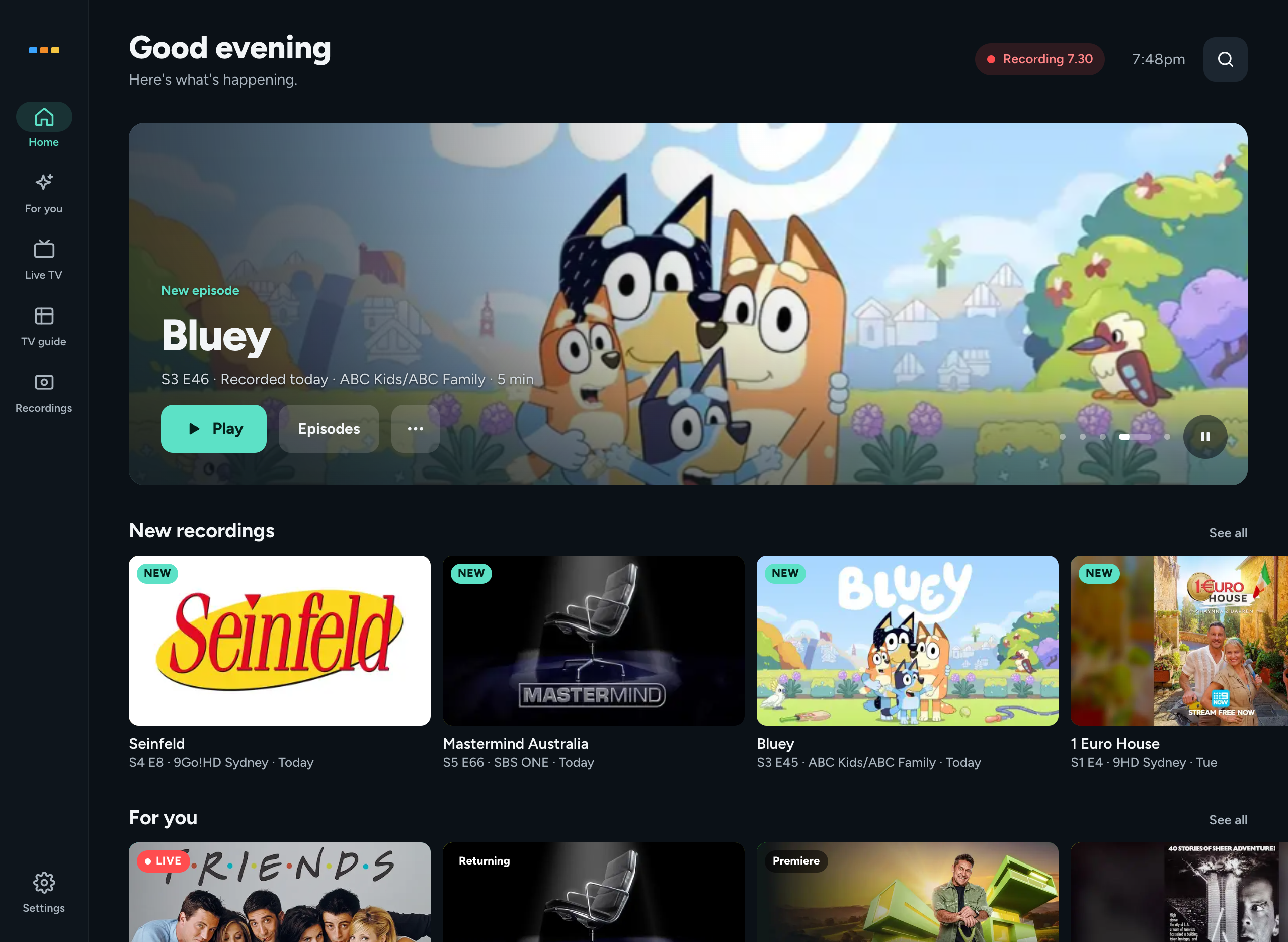
Home is the first page Freetvarr opens. It answers one question: what can I watch now? Its title greets you for the time of day, such as Good evening. Before 5am it reads Late night.
Navigation
Freetvarr has five destinations: Home, Live TV, TV guide, Recordings, and Settings. On a phone, a tab bar at the bottom holds them. On a tablet or computer, a rail down the left side holds them, with Settings at the bottom. The rail also has For you, second after Home. It appears once Freetvarr has seen enough of what you watch to suggest shows, and stays hidden if you turn For you off in Settings.
Each page has these controls in its header:
- Search: finds a show. See Search.
- The recording chip, while TVHeadend records, for example
Recording The Block. Point at it to see the minutes left. Press it to open the show page; Back then goes to Recordings → Library. While recordings of more than one show run, it says how many, such asRecording 2 shows, and opens Scheduled. - On a phone, the recording chip is a banner under the page title instead. Its first line is the show title (or the titles, for more than one show), and its second line says what records and the minutes left, such as
Recording · 27 min left. - The clock, on a tablet or computer.
While anything records, the browser tab title also starts with ● REC.
Highlights
The top of Home is a set of up to five slides that take turns. To move between slides:
- Swipe on a touch screen.
- Press a dot to pick a slide.
The buttons on a slide do their own job only; a tap on a button never changes the slide. The pause button keeps the current slide in place. On a touch screen, a tap on the slide away from its buttons also pauses or plays the slides. On a computer, the slides also wait while the pointer is over a slide's buttons or the dots. The slides also wait while a menu or sheet is open.
Freetvarr picks the slides from the list below and leaves out any that has nothing to show or no picture. Some kinds can give two slides, for example two recordings in progress or two films you have not watched, but a show never gets more than one slide.
The order changes each hour. Recording now and Live news or Live sport always come first, because they are on now. The other slides take turns: each hour gets a new mix, with different kinds of slide near the front, and a different first slide from the hour before. Every phone, tablet, and computer shows the same order in the same hour, and a reload in that hour does not change it. When the hour changes while Home is open, the new order starts at the next slide.
| Slide | What it shows | Buttons |
|---|---|---|
| Continue watching | A recording you started and have not finished. | Resume, Episodes |
| New episode | A new episode of a show you watch. | Play, Episodes |
| Recording now | A programme TVHeadend records now. | Watch from the start (when it can play the recording), Watch live |
| For you | A suggestion from For you, with the reason. | Record or Record series, Details |
| Live news or Live sport | A news programme or a sports match on now on a favourite channel. See Live news and sport. | Watch live, Record |
| Recording tonight | One of the next recordings, with Recording today, Recording tomorrow, or Recording and the weekday when it is not tonight. | Recording options or Details, Scheduled |
| Now in the guide | A show on your watchlist, now in the TV guide. | Record or Record series, Details |
| Unwatched movie | A film you recorded and have not watched. | Play or Resume, Details |
| Top rated this week | A film from Top rated movies this week on For you, when the guide has a wide picture for it. | Record, Details |
Details opens the programme sheet over Home, where you can record it.
Each slide also has a ⋯ button. It opens the same actions as the matching row below: the episode menu for a recording, the For you menu for a suggestion, and the live or scheduled menu for a programme. See More actions.
Live news and sport
The Live news or Live sport slide shows one programme that is on now on a favourite channel. Freetvarr picks it with these rules:
- It leaves out a show you hid, and a show in a category you hid. See Hidden shows and categories.
- A programme counts as sport only when For you files it under a sport, such as Rugby league or Cricket. A fishing or motoring show that the guide lists as sport does not count.
- A show you watch or record, or a show in a category you watch or record, comes before the others.
The ⋯ menu of this slide also has Hide this show (Hide this film for a film) and Hide with the category of the show, such as Hide fishing shows. Either one takes the slide away at once, and a message with Undo says what is hidden for 90 days. The Hidden shows and categories list in the For you settings shows what you hid, with Show again.
Rows
Under the highlights, Home has these rows. A row with nothing in it is left out. A row title opens the same page as the link at the right end of the row.
- New recordings: episodes you have not watched, newest first, with a
NEWbadge. Press a card to open the show page. See all, or the last tile in the row, opens Recordings. The tile counts every recording in your library. - For you: suggestions from the next week of the TV guide. The row takes turns between the rows of the For you page, with two films from Top rated movies this week at the third and seventh places. Until Freetvarr knows what you like, this row is called New this week. See all, or the last tile in the row, opens the For you page. The tile counts every suggestion.
- On now: what is on your favourite channels, with the channel logo beside each title and a bar that shows how far through each programme is. Press a card to watch the channel live. Live TV opens the Live TV page.
- Recording tonight: up to three recordings for tonight. Press one to open Scheduled.
On now shows only favourite channels. To fill it, press the star next to some channels in Live TV or the TV guide.
An empty Home says Nothing recorded yet and offers Find a show in the TV guide.
More actions
Every card and every Recording tonight row has a ⋯ menu. To open it:
- On a computer, point at the card or move to it with the Tab key, then press ⋯. You can also right-click the card.
- On a touch screen, press and hold the card for half a second.
The menu depends on the row:
| Row | Menu |
|---|---|
| New recordings | The episode menu from Recordings, with Episode info and Go to show. |
| For you | Record this episode, Record series, Programme info, More like this, Fewer like this, Hide this show, Hide with the kind of show, Not a movie or This is a movie, and Why this?. See For you. |
| On now | Watch live, Record this episode, Record series, and Programme info. |
| Recording tonight | Programme info, Go to show, Recording options (for a show with a series rule), and Don't record this episode. |
For a movie, Record this episode reads Record this movie, Don't record this episode reads Don't record this movie, and Record series does not show. For a one-off programme they read Record and Don't record this. The TV guide says how Freetvarr tells them apart.
For a programme with no season or episode number, the menus on On now and the highlights can also hold Not a movie or This is a movie, to correct how Freetvarr lists it; see TV guide.
Episode info shows the details of a recording. Programme info opens the programme sheet over Home. Don't record this episode cancels that one recording; a series rule still records the next episodes.
Health alert
When something Freetvarr needs is broken, such as TVHeadend not answering or the last sync (Freetvarr's pass over TVHeadend's finished recordings) failing, Home shows the reason under its title. Press it to open Health. Press × to hide the alert for a day; a different problem shows at once. The dot on the Settings icon stays until the problem is fixed.
Search
Press Search in any page header, then type at least two letters. Search covers your recordings, your series rules, and the next 7 days of the TV guide. The results come in groups, then a watchlist offer. A group with no results does not show.
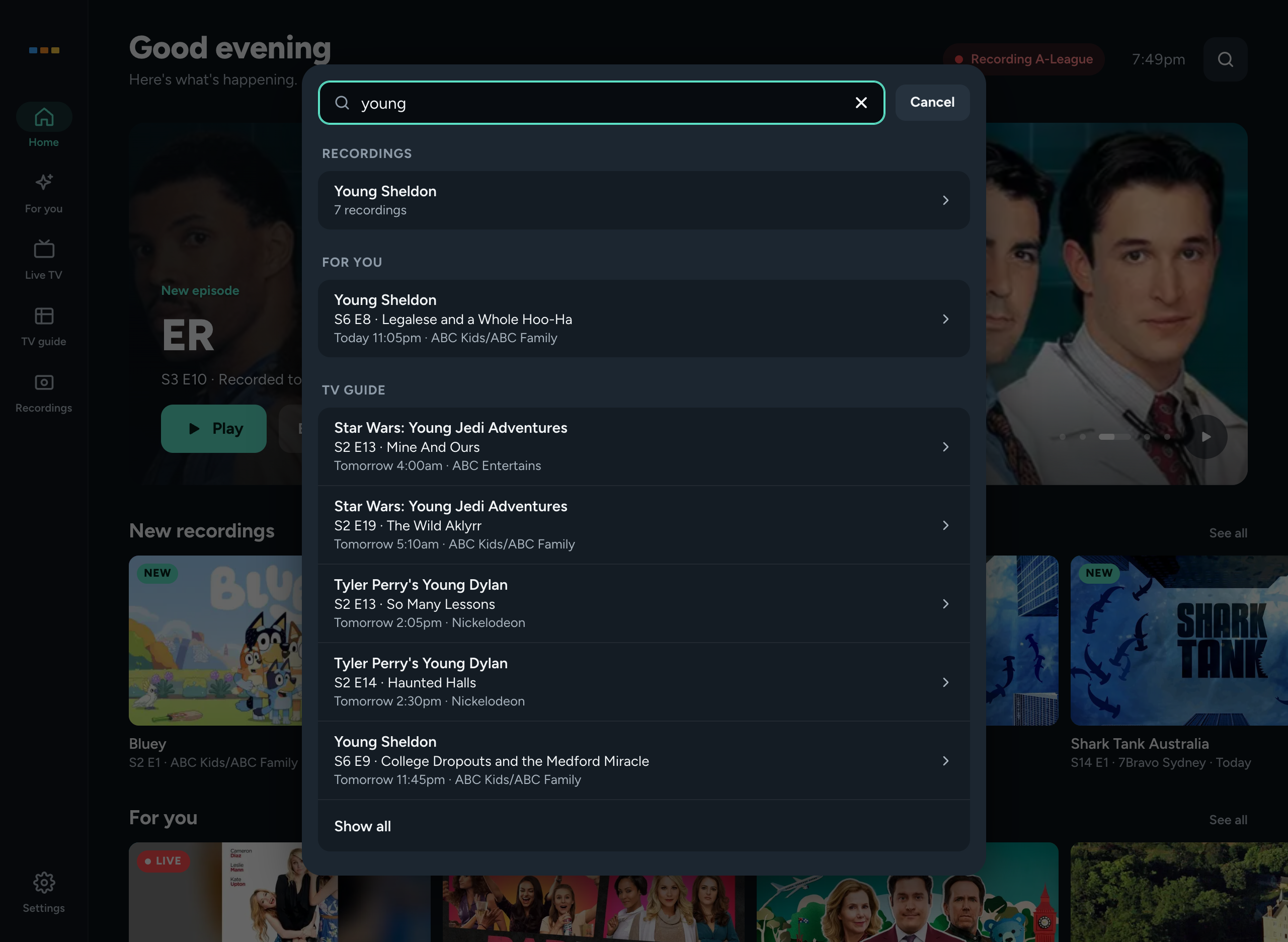
- SCHEDULED: programmes in the next 7 days that Freetvarr will record. Each row says whether the recording is a one-off or part of a series. Press one to open its programme sheet.
- SERIES: programmes in the next 7 days that one of your series rules matches.
- RECORDINGS: shows you have recorded or have a series rule for. Press one to open its show page.
- FOR YOU: programmes in the next 7 days that appear on For you.
- TV GUIDE: every other programme in the next 7 days, best match first.
Each group shows 5 results. Press Show all at the end of a group to list the rest in place. Press ↓ or ↑ to move between results, across groups, and press Enter to open the first result once Searching… has gone. On a phone or tablet, the keyboard's Done key only hides the keyboard, so you can see every result; press a result to open it.
The search ignores a leading “the”, so the chase and chase find the same shows.
When nothing in the next 7 days matches, the results end with Add “title” to watchlist under NOT IN THE NEXT 7 DAYS. Press it to list the show under WATCHLIST in Scheduled, or to record it when it is in the TV guide. See Watchlist.
Search finds a show in these ways:
- The title, or any part of it.
- A nickname from a list that ships with Freetvarr, such as
MKRfor My Kitchen Rules orGBBOfor The Great British Bake Off. - Your own names for a show. Add them under Also known as in a show's Recording options.
- Other titles of a show, such as its title in another country. Freetvarr learns these from TVmaze and Wikidata while it looks up pictures and genres, when those lookups are on in Settings → WATCHING → Film and TV info.
- Initials:
bbtfinds The Big Bang Theory. - A close spelling, when nothing else matches. The result says
Did you mean.
A result found by another name says which, such as Also known as MKR or Initials BBT.