Player
Freetvarr has one player for live TV and for recordings. It works in any modern browser, on a phone, a tablet, or a computer, and it fills the screen. Open it from Live TV, from a programme sheet with Watch live, or from an episode in Recordings.
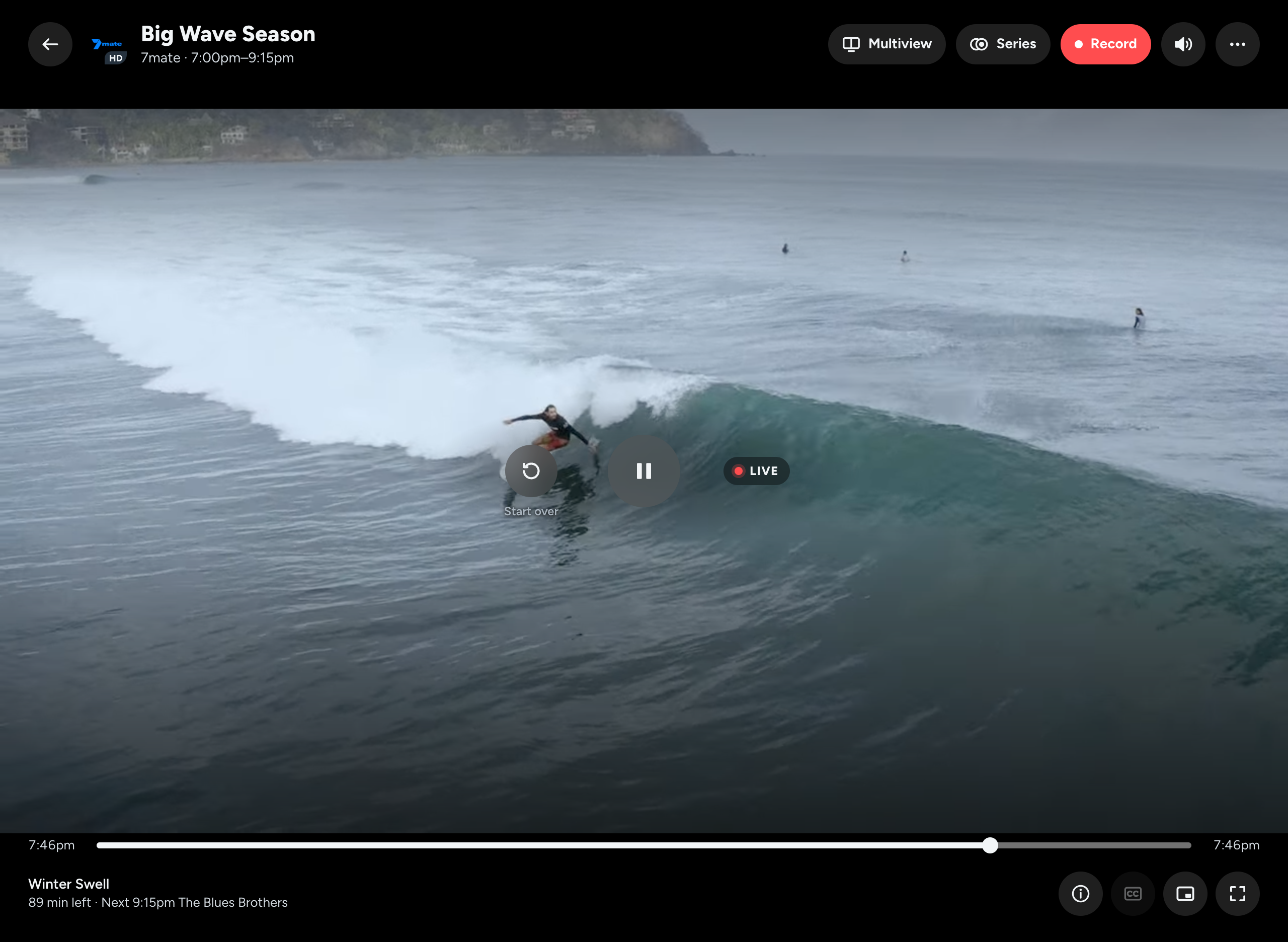
Controls
The top bar has these controls:
- The back button closes the player. For live TV, closing also frees the tuner (the device that receives the broadcast).
- The channel logo and the title of what is playing.
- Multiview (live TV only): watch up to four channels at once. See Multiview.
- The AirPlay button (recordings only): sends the episode to an Apple TV. It shows in Safari when Safari finds an AirPlay device.
- Series and Record (live TV only): record what is on. See Record from the player.
- The sound button: turns the sound on or off. See Sound.
- ⋯ (More): Pop out (picture in picture) (see Pop out), the buttons that do not fit in the top bar, such as Multiview, and Miniplayer when the row under the position bar has no room for it. The ⋯ button shows only when the menu has something in it.
On a wide screen, Multiview and Series show their names. On a narrower screen, they show only their icons. Point at an icon-only button with the mouse to see its name.
The centre of the picture has Start over (see Start over), the large Pause or Play button, and, for live TV, Go live or the LIVE mark. The position bar sits under the picture.
The row under the position bar shows what is playing on the left:
- Live TV: the minutes left and the next programme, such as
24 min left · Next 8:30pm The Project. A tablet or computer also shows the season, episode, and episode title above it. While you watch From the start, the row readsFrom the start · still recording. On a phone held upright, the row shows only the minutes left, orFrom the start. - Recordings: the clock time the episode ends if you watch to the end, such as
Ends 9:42pm.
The right of the row has these buttons, in this order:
- Programme info: shows what is playing. See Programme info and Recording info.
- Captions: turns captions on or off. See Captions.
- Miniplayer: shrinks the player so you can use the rest of Freetvarr. See Miniplayer. On a very narrow screen, Miniplayer is in the ⋯ menu instead.
- Full screen: fills the screen. See Full screen.
During a marked ad break, recordings show Skip ad over the picture, above the position bar. On a screen wider than a phone held upright, recordings also show a pill after the end time of the position bar that says how many minutes are left, such as 35 MIN LEFT. See Playback.
On a phone or tablet, tap the picture to show or hide the controls. On a computer, move the mouse to show them, and click the picture to pause or carry on. The controls hide again after 2 seconds; change the delay in Playback settings.
Double-tap (phone or tablet) or double-click (computer) the left third of the picture to go back 10 seconds, or the right third to go forward 10 seconds. Keep tapping to skip further.
Start over
Start over works differently for live TV and for recordings.
For live TV, Start over does one of these:
- From the start: plays the programme from its first minute, while TVHeadend keeps recording it. This is possible only when TVHeadend is recording that programme on that channel. Freetvarr plays the recording in progress, so you can watch a show you started late from the beginning.
- Back to when you tuned in: jumps to the oldest part of the rewind buffer (the last
30minutes of the channel, which Freetvarr keeps; see Pause and rewind). This is possible a few seconds after you tune in.
When both are possible, Start over asks which one you want and shows the clock time for each. When only one is possible, Start over does it straight away. In Multiview, Start over always goes back to when you tuned in.
While you are behind live, Go live returns to now, and the text under it says how far behind you are, such as 2 min behind.
For a recording, Start over shows when the player resumed where you stopped, and plays the episode from the start.
Sound
The sound button at the right of the top bar shows a speaker. When the sound is off, the button turns amber and the speaker has a cross. Press the button, or press m on a keyboard, to switch. Point at the button with the mouse to see Mute (M) or Unmute (M). Freetvarr remembers the choice on each device, and the next channel or recording starts the same way.
To start every video muted on a device, turn on Start muted in Playback settings.
Captions
Press the Captions button, at the bottom right of the player, to turn captions on or off. The button is highlighted while captions are on. On a keyboard, press c. Each browser remembers the choice, for live TV and recordings alike.
Captions works only when the channel or the recording carries the broadcast's Teletext subtitles. Otherwise the button is dimmed, and pointing at it with the mouse shows No captions on this channel or No captions on this recording. Some programmes on a channel with captions still have none. See Captions.
Miniplayer
Press the Miniplayer button at the bottom right of the player (or Miniplayer in the ⋯ menu, when the row has no room for it) to shrink the player, or swipe down on the picture on a phone. The video keeps playing while you move between pages in Freetvarr.
- On a phone, the Miniplayer is a bar above the tab bar.
- On a tablet or computer, it is a small card in a corner of the screen. On a small screen it is a bar instead.
- On a tablet or computer, drag the curved grip on the corner of the card that faces the middle of the screen to resize it, between a fifth and just under half of the screen width (the same limits as the small picture in Multiview Big and small); double-click the grip to reset it, and this device keeps the size you choose.
On a phone, the Miniplayer bar shows Pause or Play and ⋯. Tap anywhere else on the bar to go back to the full player. For live TV, the line under the title starts with a red dot and Live. While the sound is off, Muted comes next, before the channel. The ⋯ menu has Sound, Pop out (picture in picture) where the browser supports it, and Close player.
On a tablet or computer, the card always shows the sound button, Captions, the full player button, and ⋯. A card too narrow for Captions moves it into ⋯, and a dimmed Captions button means the channel or recording has none. Tap the picture or point at it with the mouse to show Pause or Play in the middle of the picture. The ⋯ menu has Pop out (picture in picture) where the browser supports it, and Close player. Tap the picture while its controls show, or press the full player button, to go back to the full player.
Close player stops the video, and for live TV frees the tuner.
Pop out
Pop out (picture in picture) in the ⋯ menu moves the video into a small window that the browser keeps on top of other apps and windows. It shows only in a browser that supports picture in picture. Press Close pop out (picture in picture) to bring the video back.
Full screen
Press the Full screen button, at the bottom right of the player. On a computer, you can also press f, or double-click the picture. Press the button again, or press f, to leave full screen.
On a phone, turn the phone sideways while the player is open, and the picture fills the screen. On an iPhone, the player stays in Freetvarr with its own controls, so Start over, Multiview, and the other buttons keep working. The Full screen button opens the iPhone's own video player instead.
Multiview
Multiview plays up to four live channels at once, for example several sports matches. A tablet or computer shows up to 4 pictures; a phone shows up to 2. Each picture needs a live stream, so Live streams at once also sets the most pictures you get. See Live streams at once.
- Open a channel in the player.
- Press Multiview in the top bar. A sheet lists your favourite channels first, then the other channels.
- Press the second channel.
Each channel in the sheet has a tag that says what it costs:
| Tag | What it means |
|---|---|
Uses a free tuner | A tuner is free, and the channel takes it. |
No extra tuner | The channel shares a multiplex (a group of channels on one frequency) with a channel already tuned. The tag can read No extra tuner: same multiplex as and that channel's name. |
Unavailable: all tuners busy | Every tuner is in use. You cannot pick the channel. |
Unavailable: off air | The channel is not broadcasting now. |
Unavailable: N streams already playing | Freetvarr already plays as many live streams as Live streams at once allows. N is that limit (1 stream when the limit is 1). |
The tuner count at the top of the sheet, such as 2 of 4 tuners, opens How this works, which explains tuners and multiplexes for your hardware. Recordings always come first: if a recording needs a tuner, it takes one from live TV.
To add a third or fourth channel, press Add channel in the Multiview header, or the empty Add channel slot. The sheet shows a box for each picture on screen and one for the new picture. On a phone, the sheet says that phones show up to 2 pictures.
With two channels playing:
- Side by side shows the two pictures next to each other. Big and small shows one picture full size and the other in a corner. On a phone held upright, the pictures stack instead; turn the phone sideways to choose a layout.
- The swap button swaps the two pictures.
- In Big and small, drag the small picture to any corner. Double-tap it (double-click with a mouse) to make it the big picture.
- On a tablet or computer, you can resize the pictures. In Side by side, drag the bar between the pictures. Each picture takes from
30%to70%of the width, and the bar snaps at a third, a half, and two thirds. In Big and small, drag the grip on the small picture's inner corner (the corner nearest the middle of the screen). The small picture takes from20%to45%of the screen width, and its outer corner stays where it is. - Point at a picture with the mouse, or tap it, to show its own controls: Start over (back to when you tuned in), Pause or Play, Go live or the
LIVEmark, and a position bar. The first tap only shows the controls; it never pauses. Tap the picture again, or wait, and the controls hide. - A paused picture dims, its badge reads
PAUSED, and a large Play button stays on it until you press it. Each picture pauses and plays on its own. - Each picture has its own Sound or Muted button. Press Muted on a picture to hear it; the other picture mutes. Press Sound on the picture you hear to mute both. An outline marks the picture you hear.
- Each picture's ⋯ menu has Full screen (keep this channel and stop the other), Change channel, and Stop watching.
- The back button stops both channels and closes the player.
With three or four channels playing:
- Grid shows the pictures in two rows of two. Big and small shows one main picture and the others in a strip: on the right when the screen is wider than it is tall, and below the main picture otherwise. The swap button goes away.
- While you can add another channel, the free place in the layout is an Add channel slot.
- Double-tap a small picture in Big and small (double-click with a mouse) to make it the main picture.
- In Big and small on a tablet or computer, drag the bar between the main picture and the strip to resize them. The main picture takes from
60%to80%of the width. The bar is there only when the strip is on the right. Grid has no bar. - Only one picture has the sound. Press Muted on any picture to hear it; the others mute.
- Each picture's ⋯ menu has Make main, Change channel, Full screen (keep this channel and stop the others), and Remove.
- The back button stops every channel and closes the player.
To find a bar or grip, point at it with the mouse. On a touch screen, tap a picture: the bar or grip shows while the picture's controls show. While you drag, a label shows the new size. With the keyboard, press Tab to reach the bar or grip, then use the arrow keys to change the size in 5% steps, and Home or End to go to the smallest or largest size.
Freetvarr remembers the size for each layout and number of pictures in this browser. The swap button and Make main keep the size. Reset size in the Multiview header shows when a size is not the default; press it, double-click the bar or grip, or press Enter on it, to go back to the default. Phones always use the default sizes.
If a recording needs a tuner that Multiview uses, only the pictures on that tuner stop. The stopped picture says Stopped for a recording: and the programme name, with Pick a channel and Remove. If you were listening to it, the sound moves to the main picture. When Freetvarr starts a picture, it asks TVHeadend to take the tuner of the newest picture first.
Playback settings
Under THIS DEVICE, Settings → WATCHING → Playback holds two choices for the device you use:
- Start muted: every video starts with the sound off. This is the same choice as the sound button.
- Hide player controls after:
1 sto5 s. The default is2 s.
Both are saved in the browser, so each device keeps its own. Under LIVE TV, the same page holds Live streams at once, one setting for every device in the home.
Live streams at once
Live streams at once, under LIVE TV in Settings → WATCHING → Playback, sets how many live streams Freetvarr plays at the same time: 1 to 4. The choices stop at your tuner count. Recordings that play in Freetvarr's player count against the same limit. Two viewers of the same channel share one stream.
Each stream costs processor time, because Freetvarr converts it for the browser (Video handling). When Freetvarr starts, it measures how many streams the computer can convert at once, and sets the default from the result. The measurement converts a short 1080i test recording (1080 lines, each frame sent as two alternating halves) the same way as live TV: first one copy, then two at the same time, and so on up to four. A number passes when every copy converts at least 1.2 times faster than real time. The setting shows the result, such as Measured: this NAS can convert 2 live streams at once (hardware, measured 20 Oct 5:55pm). If you choose more than the measured number, the setting says so instead, such as You chose 2. The last measurement managed 1 smoothly, so the second picture may stutter. Press Measure again to run the measurement again. It takes up to 30 seconds, and it waits until no live TV, recording playback, or ad scan runs.
LIVE_TV_MAX_SESSIONS sets a hard limit that the setting cannot go above. It goes in the .env, the deploy settings file next to Freetvarr's Docker Compose file in the freetvarr folder (Configuration). While it is set, it is also the default, and the measurement no longer picks one. The stock Docker Compose file leaves it empty, so the measurement decides. To set a limit, add for example LIVE_TV_MAX_SESSIONS=2 to the .env, then restart Freetvarr. In the freetvarr folder, run:
docker compose up -dKeyboard shortcuts
On a computer, the player takes these keys:
| Key | What it does |
|---|---|
Space or k | Pauses, or carries on. In Multiview, acts on the picture you hear. |
| Left and right arrows | Skip back or forward 10 seconds. For live TV, within the rewind buffer. |
f | Enters or exits full screen. |
i | Shows or hides the programme or recording info. |
c | Turns captions on or off, when the channel or recording has them. |
m | Mutes or unmutes. In Multiview, acts on the picture you hear. |
Esc | Closes the info panel, or else closes the player. |