Settings
Settings groups its pages under five headings: ABOUT, WATCHING, RECORDING, SYSTEM, and DANGER ZONE. On a phone, Settings opens on the list of pages; press a page to open it. On a tablet or computer, the list sits beside the open page, and Settings opens on About Freetvarr.
When Health finds a problem, a dot shows on the Settings icon and on the Health row.
Search
Type in Search settings, under the Settings title, to find a page or a single setting. The list shows each match with its place, such as Recording → Media library. Old page names find the new pages too: recording folders finds Media library, and library and plex finds Plex.
Press a match to open its page. Freetvarr scrolls to the setting and marks it for a moment; a setting inside Token not found? (a folded section on the Plex page) opens that section first. On a keyboard, the arrow keys choose a match, Enter opens it, and Esc clears the search. On a phone or tablet, the keyboard's Done key only hides the keyboard; press a match to open it. The search stays when you go back to the list. It looks in Settings only; to find shows and programmes, use search.
About
- About Freetvarr: links to Setup and Health checks, the versions of Freetvarr, TVHeadend, and Node with the uptime, the licences, and the data credits.
- System diagram: a diagram of each component, from the aerial to the TV, and how a recording moves between them.
System diagram
Press a component to see its function, whether it is required, and who supplies it. On a wide screen the card sits beside the component you chose; press the component again, press ×, or press Esc to close it. Current shows the value Freetvarr uses now, such as the TVHeadend address or the recordings folder. For TV library, the card lists the folder for TV episodes, movies, and one-offs instead. Existing setup says what to use if you already have that component. The buttons under it open the matching Settings pages.
The info sheets on the TVHeadend, Media library, Plex, Ad removal, Film and TV info, Watch on TV, Channels, and Setup pages have a System diagram button. It opens the diagram with that component selected.
Watching
| Page | What it holds |
|---|---|
| Playback | Under THIS DEVICE, Start muted and Hide player controls after (Playback settings). Under LIVE TV, Live streams at once, 1 to 4, for every device in the home (Live streams at once). |
| Channels | Hide SD simulcasts and Hide SD channels, the same switches as in the channel settings of the TV guide and Live TV (TV guide). |
| Guide | The merged guide and its confirm step, Use first (Automatic or one source), SOURCE HEALTH, CHANNEL SOURCES, BROADCAST GUIDE, and THIRD-PARTY FEEDS (Guide). |
| Film and TV info | The LOOK UP ONLINE switches Missing pictures (Missing pictures), Ratings, Reviews (Ratings and reviews), Cast and crew (Cast and crew), and Genres (For you); the optional TMDB API key (TMDB is a film and TV database; TMDB key); Keep faces in view; under STILLS FROM RECORDINGS, Use stills: Off, When nothing else, or Before series picture, for frames from inside recordings (Episode frames); and Movie corrections, the shows you marked Not a movie or This is a movie to fix a wrong label, each with Undo. |
| For you | For you, its suggestion level, and your viewing history (For you). |
| Watch on TV | A TVHeadend login and the addresses for Jellyfin and Kodi (TV apps). |
Each LOOK UP ONLINE switch sends programme titles to online services: Missing pictures to TVmaze, Wikidata, Wikipedia, and TMDB; Ratings to TVmaze and TMDB; Reviews to TMDB; Cast and crew to TVmaze and TMDB; and Genres to TVmaze and Wikidata. TMDB receives titles only after you add a key. Turn a switch off to keep those titles on your network.
Guide
Freetvarr merges the free guide sources of your country into one guide file, and serves it to TVHeadend at http://<freetvarr-host>:3733/guide/xmltv.xml. Freetvarr builds the file every 6 hours. The sources depend on the time zone under SCHEDULE:
| Country | First source | Second source |
|---|---|---|
| Australia | Freeview (the next 9 days) | i.mjh.nz (channel names, gaps, the days after) |
| New Zealand | Freeview NZ (the next 7–8 days) | i.mjh.nz (channel names, gaps, the days after) |
| Other | None. TVHeadend keeps its own guide: the broadcast guide (EIT), plus any XMLTV grabber you set up | None |
In a country with no listings source, BROADCAST GUIDE shows how many channels have listings for the next 48 hours, how many days ahead the guide goes (the median of the channels), and the share of programmes with a description. Freetvarr reads these from the TVHeadend guide.
THIRD-PARTY FEEDS lists XMLTV feed addresses that other people publish for your country, such as epgshare01, epg.pw, and xmltv.net (Australia). Freetvarr has not checked their licences, and reads none of them unless you choose one. To use one, press Copy, then paste the address into the XMLTV URL grabber in TVHeadend, or into Another address under SETTINGS → SETUP → Guide. In Australia and New Zealand, a guide address that is not an i.mjh.nz feed stops the merged guide.
MERGED GUIDE holds a one-time confirm step. TVHeadend reads its guide as before until you confirm. The step shows what changes:
- TVHeadend guide grabber: the guide address TVHeadend reads now, and the Freetvarr address it reads after.
- Guide channels: the channel count now and after, and the channels that only Freeview lists.
- Days ahead: how many days each source covers.
Press Use the merged guide to see a dialog that explains the change: the address TVHeadend reads, the channels and days ahead it gains, and how to stop later. Press Use the merged guide in the dialog to make the change, or Cancel to leave everything as it is. Freetvarr turns on the merged guide, points the TVHeadend XMLTV URL grabber at Freetvarr, waits for TVHeadend to fetch the file, links the channels that only Freeview lists, and checks that the TVHeadend guide updated. Each step shows as it runs. If a step fails, such as TVHeadend not fetching the file within 150 seconds or its listings not changing within 5 minutes, Freetvarr puts the grabber, the channel links, and the save settings back as they were, and turns the merged guide off again. If Freetvarr restarts during the change, it puts them back when it starts. When the grabber reads another i.mjh.nz region than your time zone, the step first builds the merged guide for that region (about 15 minutes). Press Keep my grabber as it is to leave TVHeadend unchanged; the confirm step stays on this page if you change your mind. When the merged guide is ready and the TVHeadend XMLTV URL grabber reads a feed that Freetvarr can replace, Home and Health show a notice with Review, which opens this page; press × to hide the notice.
To undo the change, press Stop using the merged guide under MERGED GUIDE. A dialog shows the address the TVHeadend XMLTV URL grabber reads after, the channels that lose their guide because only Freeview lists them, and the days ahead after. Press Stop using the merged guide in the dialog to make the change, or Cancel. Freetvarr points the grabber back at the address it read before you switched (with the same priority), puts back the save settings and channel links that the switch changed, unlinks the channels that only Freeview lists, turns the merged guide off, and checks that TVHeadend reloaded its guide. If a step fails, Freetvarr puts the merged guide back. When Freetvarr has no record of the switch (a switch made before version 2.21.0), the grabber goes back to the i.mjh.nz feed for your region; when TVHeadend has +1 channels, the grabber keeps the Freetvarr address, which then serves the i.mjh.nz feed with the +1 channels added. The page then offers the merged guide again.
After you confirm, the page shows:
- Use first: Automatic (the default) reads Freeview first. When the Freeview listings of a channel stay degraded for two builds in a row, that channel uses i.mjh.nz until Freeview recovers, and Activity lists each channel that changed. Choose Freeview or i.mjh.nz to read that source first for every channel, even while it is degraded; Health then warns you and offers Switch to Automatic.
- SOURCE HEALTH: for each source, the share of channels with healthy listings, how many days ahead it goes, and when Freetvarr last read it.
- CHANNEL SOURCES: each channel that uses another source, or that you pinned, with a list to change it. Pin a channel makes one channel read one source first, even while it is degraded. Choose Automatic in a channel's list to remove the pin.
Freetvarr scores each source on each channel at every build: the hours of the next 48 hours it covers, the days ahead, the share of programmes with a title and a description, the share of programmes that the other source lists within 5 minutes with the same title, and the share of downloads that failed. A source is degraded on a channel when, in two builds in a row, it covers less than half its usual hours (the median of the last 14 days), runs less than 3 days ahead, or agrees with the other source on less than 60% of programmes.
Recording
| Page | What it holds |
|---|---|
| Series rules | Every series recording with its folder (Series rules and folders). |
| Title matches | The title matches that save recordings to a folder without a series recording (Title matches). |
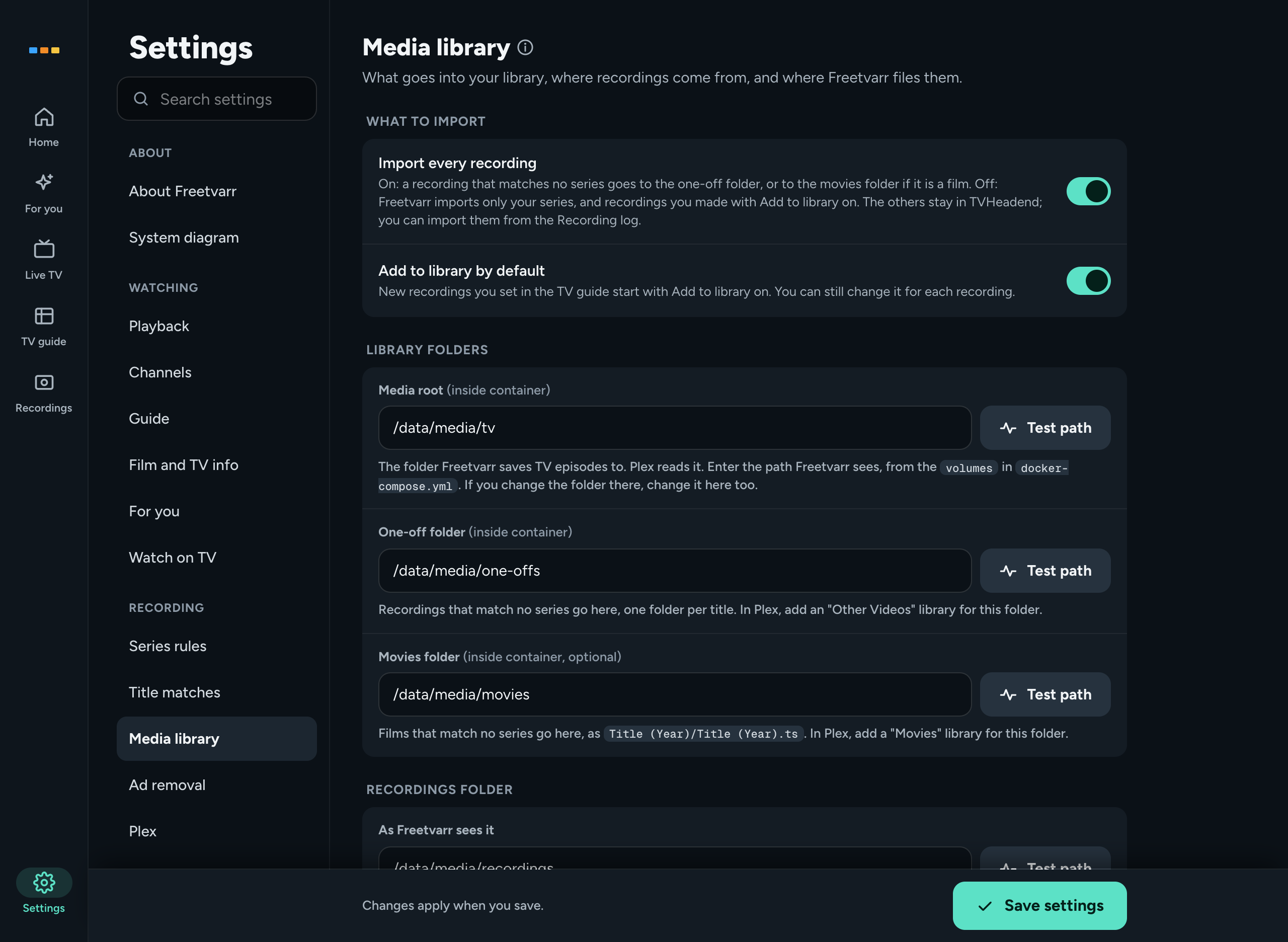
| Media library | Under WHAT TO IMPORT, Import every recording and Add to library by default (Configuration). Then Media root, One-off folder, Movies folder, and the recordings folder as Freetvarr and TVHeadend each see it (Configuration). |
| Ad removal | Enable ad removal, how long to keep the original after a cut, and the detection settings (Ad removal). |
| Plex | The Plex server, token, and libraries, and Wait for Plex before removing recordings from TVHeadend (Plex). Under YOUR WHOLE LIBRARY, Show your whole Plex library and the libraries to show (Your whole library). Under WATCHED STATE, From Plex, Back to Plex, and Sync watched now (Watched state). |
| Sonarr and Radarr | Sonarr and Radarr download TV episodes and films. This page holds Find Sonarr and Radarr, the address and API key of each, and Stop downloading it again, so a file you delete in Freetvarr does not download again (Sonarr and Radarr). |
| Recording log | Every recording TVHeadend has finished, with the full import detail (Recording log). |
System
| Page | What it holds |
|---|---|
| Setup | What Freetvarr uses now: TVHeadend, channels, the TV guide, folders, Plex, the time zone, and Allowed hostnames (the extra names, such as a reverse proxy name, that Freetvarr answers to; Allowed hostnames). Press a row to check or change that part, such as Scan again for channels (a dialog asks you to confirm before the scan starts). Run the whole setup from the start opens setup again (Getting started). |
| Health | The checks, the last and next sync, Sync now, and the free disk space (Health). |
| Activity | Now lists what the server is doing, such as a sync, an import, or ad removal, with what records and plays now and what runs next. Syncs lists every sync. While a job runs, the Settings list shows the number running beside Activity (Activity). |
| Schedule | The time zone and the Sync schedule (Activity). |
| TVHeadend | The TVHeadend address and login, Auto-discover TVHeadend, the TVHeadend open-access check, and the tuner list (TVHeadend by hand). |
Danger zone
| Page | What it holds |
|---|---|
| Reset | Reset Freetvarr deletes Freetvarr's settings, series folders, list of recordings, and sync history, then setup starts from the beginning. Your video files, and the recordings and settings in TVHeadend, stay where they are. Freetvarr keeps the TV login it made, and the Allowed hostnames. You can still delete the TV login, or restore open access, after setup. You cannot undo a reset, and you cannot reset while a sync runs. |
Saving changes
On the Film and TV info, Ad removal, Media library, Plex, Sonarr and Radarr, TVHeadend, and Schedule pages, press Save settings to keep a change. The TMDB key (Save key), Movie corrections, and the Channels, Playback, and For you pages save each change at once.
Old addresses
Settings pages have their own addresses, such as #/settings/player or #/settings/system/health. A page keeps its address when its name changes: Playback is #/settings/player, and Media library is #/settings/storage.